
Tileable Texture Tester
Repeat a texture in a grid and measure whether its edges join without a seam.
Free · runs in your browser · nothing is uploaded
Recent
Your last 10 settings, saved only in this browser. Nothing is uploaded.
A tileable texture tester shows whether a texture repeats cleanly, by placing copies of it side by side and measuring the join. This one repeats your image 2 × 2, 3 × 3 or 4 × 4, can mark the tile borders so you know where to look, and gives a single number, the seam ratio, that compares the step across the wrap edge with the ordinary steps between neighbouring pixels inside the image. A plain verdict goes with it: looks seamless, a seam is likely visible, or a clear seam. That turns “does it tile?” from a judgement call into a check you can repeat on every texture in a set, before it reaches your engine or a client.
It reads PNG in 8 or 16-bit, JPG, WebP, TGA, BMP and EXR, so a whole folder of textures can be checked one after another.
How to use the Tileable Texture Tester
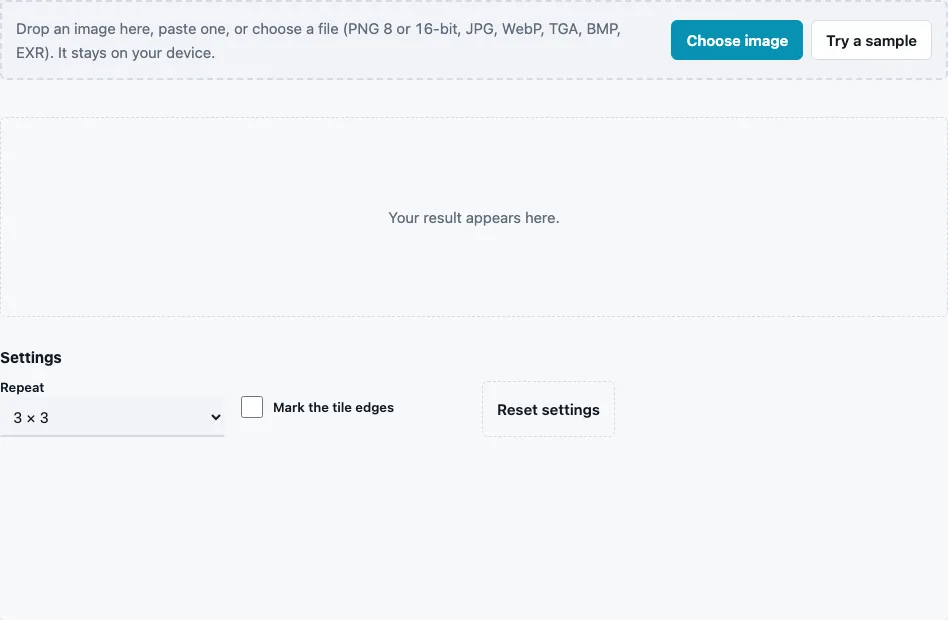
- Drop a texture on the tool, paste it or press Choose image. Try a sample loads a brick crop that does not tile, so you can see what a failure looks like.
- Choose Repeat: 2 × 2, 3 × 3 (default) or 4 × 4 copies.
- Tick Mark the tile edges to draw the borders between the copies in magenta.
- Read Seam ratio and Result in the stats line.
- Look at the tiled view, then untick the edge marks and look again: a good tile shows no line where the marks were.
- Check the 3D preview, which lays the texture on a plane repeated 3 × 3.
- Press Download Tiled if you want the repeated image as a file, for example to send for review.
Images larger than 1024 px are tested at 1024 px on the long side. The tester changes nothing about your texture. To fix a seam it finds, use Make Texture Seamless and test the result here again.
What to look for in the tiled view, beyond the number:
- a thin line along the marked borders, which means a seam the ratio may already have flagged;
- a grid of light and dark squares, which means a brightness gradient across the photo rather than a seam;
- one feature repeating at regular intervals, which means the tile is too small or too distinctive for a large surface.
Each of these needs a different fix, so it helps to know which one you are looking at before you start editing.
How is the seam ratio measured?
The tester compares the pixel pairs that meet when the texture repeats, the last column against the first and the last row against the first, with ordinary neighbouring pairs inside the image. Seam ratio = average difference across the wrap edge ÷ average difference between neighbours. A value near 1 means the join looks like any other step in the texture. One exception: if the step pattern along the wrap edge reappears as a line inside the image, the texture repeats with a hard edge on its border, like a checker or stripes, and that edge counts as an ordinary step, so a perfect repeat scores 1 instead of a false “clear seam”.
| Seam ratio | Result shown | Meaning |
|---|---|---|
| up to 1.5 | looks seamless | the join is no stronger than normal detail |
| 1.5 to 3 | a seam is likely visible | noticeable on smooth or large surfaces |
| above 3 | a clear seam | a line shows at every repeat |
Some values computed by the engine on this site’s built-in samples:
| Texture | Seam ratio |
|---|---|
| brick photo crop, as loaded | 17.95 |
| same crop after Make Texture Seamless (offset and blend, defaults) | 0.35 |
| default generated texture (Seamless Texture Generator) | 0.92 |
All colour channels count, and so does alpha if the image has one. A completely flat image scores exactly 1.
What is a tileable texture?
A tileable texture is an image whose opposite edges continue each other, so it can repeat across a floor, wall or terrain without a visible line. Tileable and seamless mean the same thing. Textures for real-time graphics are often tileable because one small image can then cover a large surface.
Why can a texture tile without a seam and still look repetitive?
The seam ratio only measures the edges. A distinctive stain, a bright stone or a light gradient repeats in a grid even when the join itself is invisible, and the eye picks up the pattern. Look at the 4 × 4 view for that; the number cannot judge it.
Why compare against the inside of the image?
A fixed threshold would not work for every texture. A rough stone photo has large steps between neighbouring pixels everywhere, so a large step at the edge does not stand out; a smooth plaster texture has tiny steps, so even a small edge step shows. Dividing by the texture’s own typical step makes one scale work for both.
Questions and answers
How do I check if a texture is already seamless?
Load it and read the seam ratio. Up to 1.5 the tester reports “looks seamless”; confirm in the tiled view.
What size does the test use?
Up to 1024 px on the long side. Larger images are scaled down first, which keeps the test fast.
What does a seam ratio of 17.95 mean?
The step across the border is about 18 times larger than a typical step inside the image: a hard, obvious seam.
Why is my ratio below 1?
The edges are smoother than the rest of the image, which happens after blending. It still tiles.
Does it work with normal maps?
Yes. The ratio works on any image, so you can test a normal or height map exactly like a colour texture.
Can I test a non-square texture?
Yes. The ratio pools the horizontal and the vertical join, and the tiled view keeps the proportions of your image.
Does the tester fix the seam?
No, it only measures and shows it. Fix it with Make Texture Seamless, then load the result here again.
Why does my texture pass but still show a line in my engine?
The engine may sample the edge differently: texture filtering with clamped edges, mipmaps built without wrapping, or a UV layout that does not span exactly 0 to 1 can all draw a line that the file itself does not contain.
Related tools
- Make Texture Seamless: fix the seam the tester found.
- Seamless Texture Generator: patterns that tile by construction.
- Seamless Normal Map Generator: tileable texture and normals together.
- PBR Material Viewer: check the tiled material in 3D.
- Power of Two Texture Resizer: resize after it passes.
- PBR Texture Generator: build the rest of the material.