
Texture Packer (Sprite Sheet)
Pack many sprites into one sprite sheet and get the frame data as JSON for Phaser, Pixi or your own engine.
Free · runs in your browser · nothing is uploaded
Recent
Your last 10 settings, saved only in this browser. Nothing is uploaded.
A texture packer places many small images, such as sprites, icons or animation frames, onto one larger sheet and writes down where each one ended up, so a game can load a single texture and cut the pieces out by their coordinates. This one packs up to 64 images at a time with the MaxRects algorithm, adds the padding you choose between them, can round the sheet up to a power-of-two size and can rotate sprites to fit more in. It starts new sheets when everything does not fit on one, and it saves each sheet as a PNG with a JSON atlas in the widely used JSON Hash layout. The stats show how much of each sheet the sprites actually cover.
PNG transparency is kept on the sheet.
How to use the Texture Packer
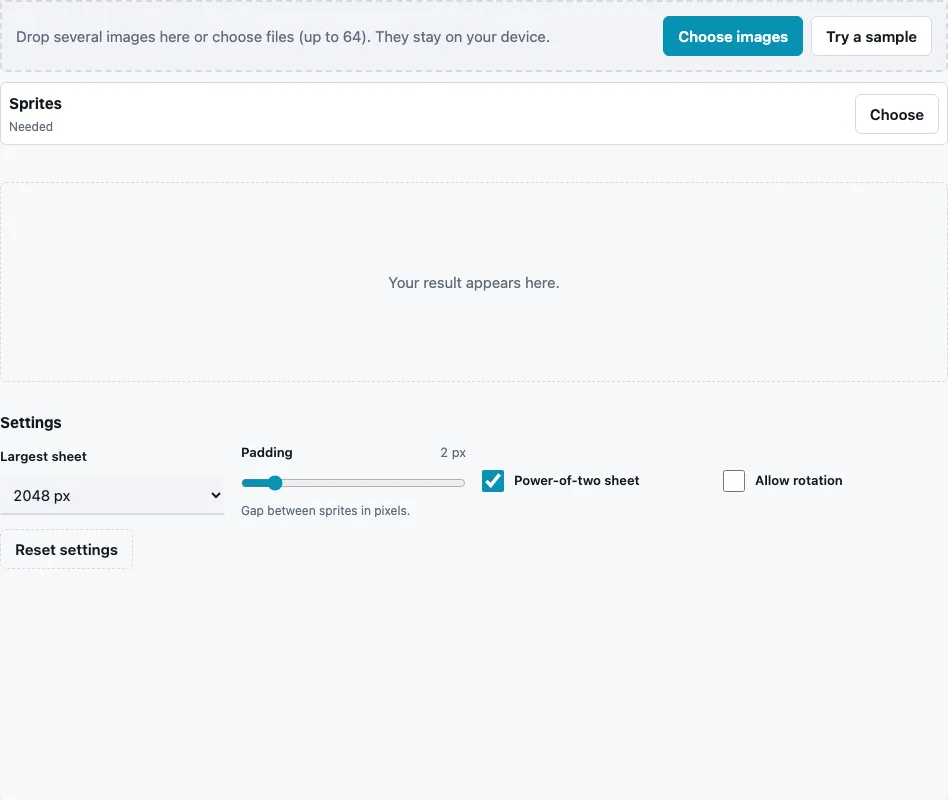
- Drop your images on the tool or press Choose images (up to 64). Try a sample loads eight coloured sprites of different sizes.
- Choose Largest sheet: 512, 1024, 2048 (default) or 4096 px.
- Set Padding (0 to 16 px, default 2): the gap between neighbouring sprites, which stops colours from bleeding into each other when the sheet is filtered; 2 px protects the first mip levels, and the edges are not extruded.
- Keep Power-of-two sheet on (default) if your engine or platform prefers sizes like 256, 512 or 1024.
- Tick Allow rotation to let sprites turn 90° when that packs them tighter (off by default).
- Read the stats line: Sprites, Sheets, Size, Area used and Too large for a sheet, and look over the sheet in the result view.
- Press Download Sprite sheet and Download Atlas JSON, or Download all (ZIP) to get every sheet and its JSON together.
Each frame in the JSON is named after its file, without the extension; two files with the same name get -2, -3 and so on. Keep the PNG and its JSON together, since the JSON names the image file it belongs to. Transparent borders around sprites are packed as they are; trim them in your editor first if space is tight.
If Area used is low, try a smaller Largest sheet, turn Power-of-two sheet off if your engine allows any size, or allow rotation. If the count of sheets is higher than you want, raise the sheet size instead.
What JSON format does the atlas use?
The atlas is written in the JSON Hash layout: a “frames” object with one entry per sprite, keyed by name, and a “meta” block. Each frame has its position and size on the sheet, a rotated flag, a trimmed flag (always false here), and the sprite’s original size. Game frameworks such as Phaser load this layout as an atlas.
| Field | Content |
|---|---|
| frame | x, y, w, h of the sprite on the sheet |
| rotated | true if the sprite was turned 90° clockwise |
| trimmed | false (no trimming is done) |
| spriteSourceSize, sourceSize | the original width and height |
| meta | image file name, RGBA8888, sheet size, scale 1 |
Rotated sprites are stored turned 90° clockwise. Their frame width and height stay the unrotated sprite size, as Phaser and PixiJS expect: on the sheet a rotated sprite covers frame height × frame width from the frame position. Some loaders ignore the rotated flag, so leave rotation off unless yours reads it.
Does the texture packer support multiple atlases?
Yes. When the sprites do not fit on one sheet of the largest size, more sheets are made, numbered “Sprite sheet 2”, “Atlas JSON 2” and so on, each JSON naming its own image. A single sprite larger than the largest sheet gets a sheet of exactly its own size and is counted under Too large for a sheet.
How does MaxRects packing work?
The packer keeps a list of the free rectangles left on the sheet and places each sprite in the one where it leaves the smallest leftover along its shorter side, the “best short side fit” rule. That keeps the free space in large, usable pieces. With the built-in eight sprites the result is one 256 × 256 sheet with 50.6 % of its area used; area used counts sprite pixels only, so padding and empty corners lower it.
Power-of-two rounding often explains a low figure: sprites that need 300 × 260 px of space end up on a 512 × 512 sheet, and the rest is empty. That is the price of sizes that halve cleanly for mipmaps.
Questions and answers
How can I create a sprite sheet from images?
Drop the images, pick a maximum sheet size and padding, and download the sheet with its JSON.
What atlas sizes are available?
Sheets up to 512, 1024, 2048 or 4096 px. With Power-of-two sheet on, each sheet is rounded up to the next power of two within that limit; with it off, the sheet is as small as the sprites allow.
Can I review sprite placement before export?
Yes. The result view shows every sheet as it will be saved, and the stats report how full it is.
Why use padding?
Without a gap, texture filtering and mipmaps can pick up pixels of the neighbouring sprite at the edges. Two pixels is a common starting point; more is safer for heavily scaled sprites.
Does the packer trim transparent edges?
No. Sprites are packed at their full size, which keeps their pivot points unchanged.
Can I pack normal maps for sprites the same way?
Yes. Pack the normal maps with the same settings and in the same order as the colour sprites, and check that the two sheets line up before you use them.
Which engines can read the JSON?
Any engine or framework that loads JSON Hash atlases, and any custom loader: the format is plain JSON with pixel coordinates.
Are my sprites resized?
No. Each sprite up to 4096 px (2048 px on phones) keeps its exact pixels; only its position changes.
Related tools
- Sprite Normal Map Generator: normal maps for 2D sprites.
- Power of Two Texture Resizer: resize sprites or a finished sheet.
- Mipmap Generator: see how the sheet looks when it shrinks.
- ORM Texture Packer: a different packing, maps into channels.
- Texture Channel Splitter: look at a sheet’s alpha channel.
- Seamless Texture Generator: backgrounds that tile behind the sprites.