
Sprite Normal Map Generator
Make a normal map for a 2D sprite so it reacts to lights in your engine. Edges are bevelled from the transparency and the alpha is kept.
Free · runs in your browser · nothing is uploaded
Recent
Your last 10 settings, saved only in this browser. Nothing is uploaded.
A sprite normal map generator makes the normal map that lets a flat 2D sprite react to dynamic lights: a lamp passing by lights its left edge, then its top, as if the pixel art had volume. This one is built for pixel art. It uses no blur and no resampling, so every pixel of the normal map lines up with a pixel of the sprite, and it shapes the sprite in two ways: a bevel that rises from the transparent edge inward, and height from brightness. Transparent pixels stay flat and the sprite’s alpha channel is kept, so the normal map drops straight in next to the colour sprite. Whole sprite sheets work too.
The output is OpenGL style unless you pick DirectX.
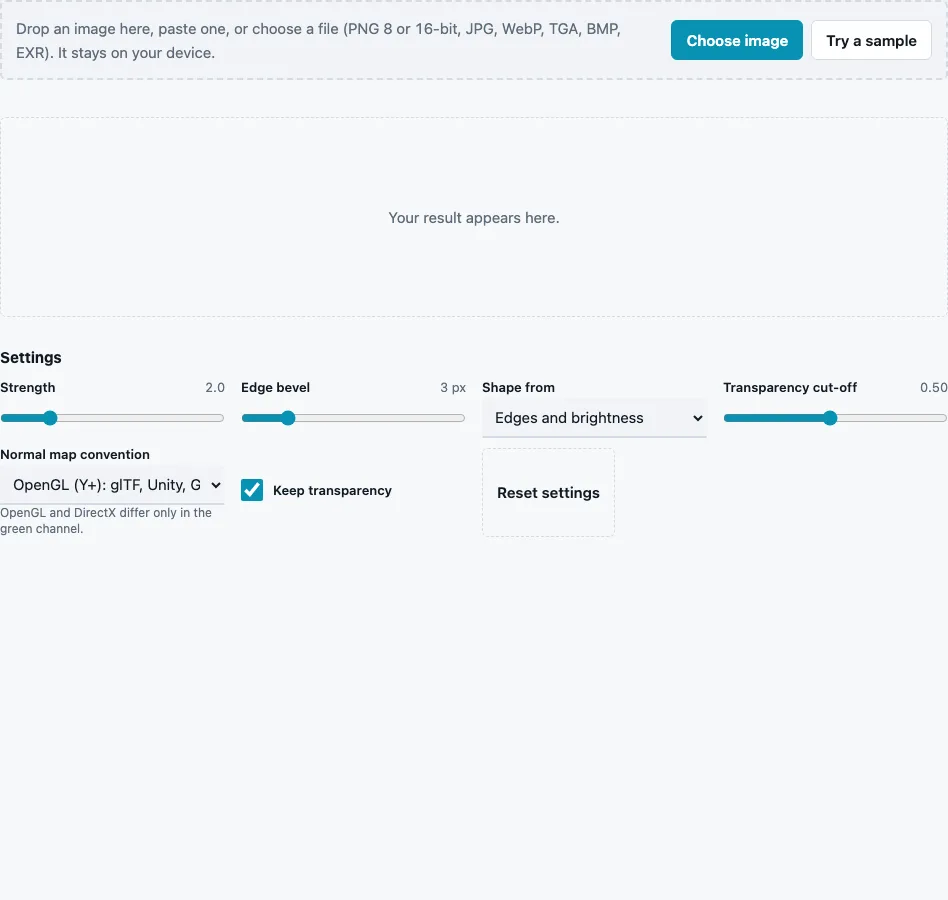
How to use the Sprite Normal Map Generator
- Drop a PNG with transparency on the tool, paste it or press Choose image. Try a sample loads a 64 × 64 pixel gem.
- Choose Shape from: Edges and brightness (default), Edges only (transparency) or Brightness only.
- Set Edge bevel (0 to 16 px, default 3): how many pixels in from the edge the slope runs. 0 keeps the inside flat.
- Set Strength (0 to 10, default 2) for how strongly the slopes tilt toward the light.
- Adjust Transparency cut-off (0.05 to 1, default 0.5) if soft or anti-aliased edges are counted wrongly; alpha at or above it counts as part of the sprite.
- Choose the Normal map convention your engine expects, OpenGL (Y+) or DirectX (Y−).
- Leave Keep transparency on to copy the sprite’s alpha into the normal map.
- Check the result view, which draws the pixels without smoothing, and the 3D preview, which lays the sprite on a plane under a movable light. Then press Download Normal map.
The normal map always has exactly the sprite’s size; sheets over 8192 px are refused, not scaled. For an animation, run the whole sheet at once so every frame gets the same treatment and the frames stay aligned.
A good first test: open the 3D preview, set Show to Lit material and hold Shift while you drag to move the light around the sprite. The rim should brighten on the side facing the light and darken on the far side. If top and bottom seem swapped, change the convention.
How does the edge bevel work?
For every visible pixel the tool measures the straight-line distance to the nearest transparent pixel, counting the image border as transparent. Height rises from 0 at the edge to 1 at Edge bevel pixels in, then stays flat. The slope of that ramp becomes the normal, so a rim of the chosen width leans outward and catches light from the side it faces.
How the three Shape from modes build height:
| Mode | Height inside the sprite | Good for |
|---|---|---|
| Edges only (transparency) | bevel ramp from the outline | flat-shaded sprites, UI icons |
| Brightness only | grey value of each pixel (Rec. 709) | sprites whose shading already shows form |
| Edges and brightness | half bevel, half brightness | most pixel art (default) |
Slopes are measured with central differences between direct neighbours and the image edges are clamped, so single-pixel details produce a visible tilt without being smeared. Unlike the photo pages, Strength here is not scaled with image size, because sprites are drawn at a fixed pixel scale.
How do 2D lights use a sprite normal map?
An engine with normal-mapped 2D lighting draws the colour sprite as usual and reads the normal map at the same pixel to decide how much each light brightens it. Pixels whose normals face a light get brighter, those facing away stay dark. Both images must have the same size and the same frame layout, and the normal map is read as data, not colour.
Which bevel width suits which sprite size?
There is no fixed rule, but the bevel should be small compared with the sprite. On a 16 px character, 1 px gives a crisp rim and 3 px already rounds most of the body. On a 64 px tile or portrait, 3 to 6 px reads as a soft edge. Brightness-based height adds the inner forms your shading already shows: a darker belt sinks in, a lighter visor stands out. Choose Edges only when the colours of the sprite say little about shape, for example flat UI icons in one tone.
Questions and answers
Does it work with a sprite sheet?
Yes. Load the whole sheet; each sprite is bevelled from its own transparent outline, and the normal map keeps the sheet’s exact layout.
Why are the transparent pixels flat?
They have no surface, so they get the neutral normal (128, 128, 255). It is invisible behind the alpha, and it prevents odd lighting at soft edges.
Will the pixel art stay sharp?
Yes. There is no blur and no resizing, and the result view draws every pixel without smoothing.
What does Keep transparency do?
It copies the sprite’s alpha into the normal map PNG. Turn it off if your engine wants an opaque RGB normal map.
What should I try if the sprite looks puffy?
Lower Edge bevel to 1 or 2 px and reduce Strength. Small sprites need a narrow rim; a 3 px bevel on a 16 px sprite affects most of it.
Can I use it on a sprite without transparency?
Yes, choose Brightness only. The edge modes need an alpha channel to find the outline; on an opaque image they only bevel the outer border of the picture.
Can I edit the normal map afterwards?
Yes, it is an ordinary PNG. Paint only with normal-map colours, and run it through the Normal Map Checker afterwards so every pixel is a valid direction again.
Related tools
- Texture Packer: put sprites and their normal maps on matching sheets.
- Normal Map Generator: normals for textures and photos, with blur.
- Normal Map Viewer: sweep a light over the result.
- Normal Map Converter: switch to the convention your engine reads.
- Power of Two Texture Resizer: nearest-neighbour resizing for pixel art.
- Texture Channel Splitter: check the alpha channel on its own.