
Specular Map Generator
Make a specular map for engines and shaders that use the specular/gloss workflow instead of metallic/roughness.
Free · runs in your browser · nothing is uploaded
Recent
Your last 10 settings, saved only in this browser. Nothing is uploaded.
A specular map generator makes the texture that tells a shader how strongly, and in what colour, a surface reflects light when you look straight at it. This page writes it three ways: as an F0 specular colour for the specular/gloss workflow, computed from a base reflectance and your albedo; as the same colour plus a glossiness map; or as a grey specular mask from the image’s brightness for older shaders. The F0 colour is saved as sRGB, as the specular/gloss workflow expects, and the page states exactly how much each setting changes the stored value. It answers a question most specular tools skip: why a map for a non-metal is supposed to be one flat colour.
The 3D preview shows the result on a lit sphere.
How to use the Specular Map Generator
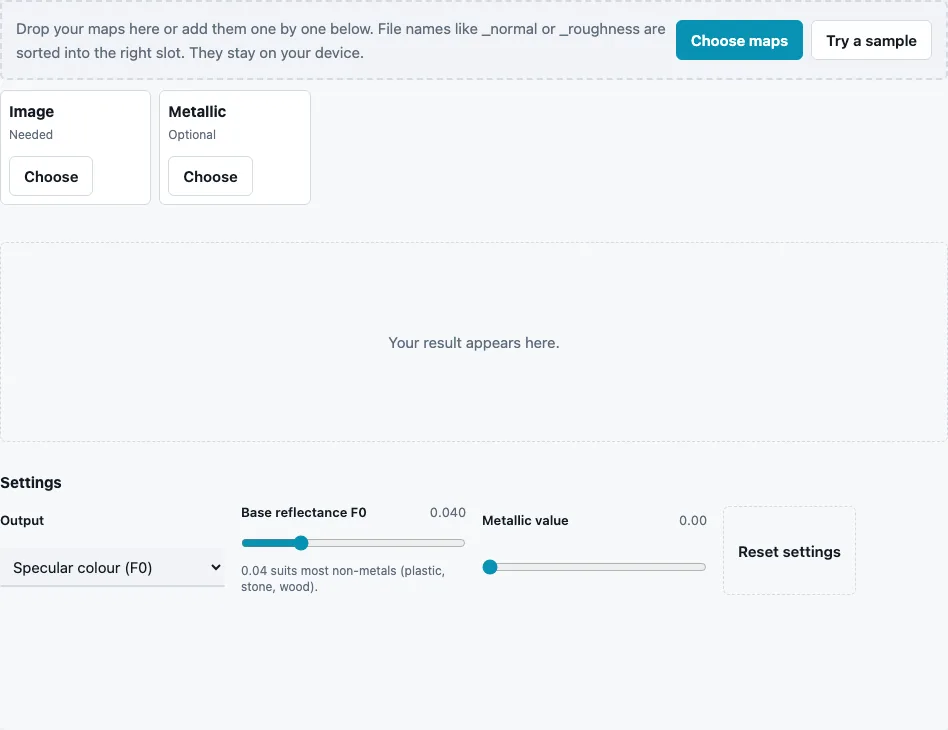
- Drop a texture or albedo map on the tool, paste it or press Choose maps; a file with metal in its name goes to the optional Metallic slot. Try a sample loads a brick wall.
- Choose Output: Specular colour (F0) (default), Specular + glossiness, or Grey specular from brightness.
- For the two F0 outputs, set Base reflectance F0 (0 to 0.16, default 0.04). The tooltip notes that 0.04 suits most non-metals such as plastic, stone and wood.
- Set Metallic value (0 to 1, default 0). At 0 the map is one colour; at 1 the albedo becomes the specular colour; in between the two are mixed.
- For Specular + glossiness, set Roughness value (0 to 1, default 0.5); the glossiness map is 1 minus that value.
- For the grey output, set Gain (0 to 4, default 1) and Offset (−1 to 1, default 0).
- Check the min, max and mean in the stats line and the reflections in the 3D preview.
- Press Download Specular (and Download Glossiness for the second output), or Download all (ZIP).
Controls that do not apply to the chosen output are hidden. Without a metallic map the metallic and roughness values apply to the whole image. Add a grey metallic map in the Metallic slot to vary metal per pixel (white = metal).
For a material that mixes metal and non-metal, such as a painted panel with bare edges, add its metal mask in the Metallic slot: F0 is 0.04 where the mask is black and the albedo colour where it is white, blended in linear light in between.
What is F0 in a specular map?
F0 is the share of light a surface reflects when you look at it straight on, at zero degrees from the normal. Non-metals reflect only a few percent, and 0.04 is the usual value for them. Metals reflect much more and tint the reflection with their own colour, which is why the specular map of a metal takes its colour from the albedo.
The F0 output stores F0 = Base reflectance F0 × (1 − m) + albedo × m in linear light, with m = Metallic value, and then encodes it as an sRGB colour:
| Setting | Stored colour |
|---|---|
| F0 0.04, metallic 0 | 56 of 255 on every channel, everywhere |
| F0 0.04, metallic 1 | the albedo colour |
| F0 0.04, metallic 0.5 | halfway between the two, in linear light |
That 56 is not a typo: 0.04 in linear light is 0.22 once encoded as sRGB, and 0.22 × 255 rounds to 56. On the built-in sample with defaults the stats show the same value, 0.221, as minimum, maximum and mean.
Specular or metallic workflow: which do I need?
They describe the same materials in two ways. The metallic/roughness workflow, used by glTF, stores a metal mask and a roughness map, and the renderer derives F0 itself. The specular/gloss workflow stores the F0 colour and glossiness directly. Use the one your shader or engine asks for. Converting needs one more map: in spec/gloss the diffuse colour is albedo × (1 − metallic), so metals have black diffuse; this tool writes no diffuse map, and reusing the albedo makes metals look like plastic. Unity’s Specular setup reads glossiness from the specular map’s alpha, while this tool saves it as a separate file.
What is a specular map in older shaders?
Before physically based shading, a “specular map” was usually a grey mask for the strength of highlights. The Grey specular output makes that: brightness × Gain + Offset, clipped to 0..1.
Why do non-metals all share one F0?
For most common non-metals, the head-on reflectance falls in a narrow band of a few percent, so the small differences between them matter far less than their colour and roughness. Physically based workflows therefore use one value, 0.04, as the default for all of them, and the slider lets you move it between 0 and 0.16 for special cases. What makes plastic look different from stone is the albedo and the glossiness, not the F0.
Questions and answers
What is a specular map?
A texture that sets how much a surface reflects head-on (F0), and in what colour. In the specular/gloss workflow it is an sRGB colour map; in older shaders a grey highlight mask.
Why is my specular map one flat colour?
Because every non-metal gets the same F0. With Metallic value 0 the map is uniform by design; detail in non-metals belongs in the albedo and glossiness, not here.
What value should F0 be for metals?
Metals take their F0 from their colour. Set Metallic value to 1 so the albedo becomes the specular colour, and make sure the albedo holds the metal’s actual tint.
Why is my PNG saved as 8-bit?
Specular is a colour map, and 8-bit sRGB is the usual format for it. Pick PNG 16-bit in the File format menu if you need more precision.
What does glossiness mean here?
Glossiness = 1 − roughness, one value for the whole image set by Roughness value. Use the Roughness Map Generator for a map that varies.
Is the specular colour stored as sRGB or linear?
As sRGB, because in the specular/gloss workflow it is a colour map. Import it with sRGB on and the glossiness map with sRGB off.
Where does 0.04 come from?
From the Fresnel equation at normal incidence, F0 = ((n − 1) ÷ (n + 1))², with a refractive index n of 1.5, typical of glass and plastics: (0.5 ÷ 2.5)² = 0.04.
Related tools
- Roughness Map Generator: a per-pixel roughness or gloss map.
- Metallic Map Generator: the metal mask of the other workflow.
- PBR Texture Generator: a complete metallic/roughness set.
- PBR Material Viewer: see reflections with all maps loaded.
- ORM Texture Packer: pack the metallic/roughness maps.
- Bump Map Generator: relief for shaders that use bump maps.