
Seamless Normal Map Generator
Turn any texture into a normal map that tiles: the image is made seamless first and the normal map is computed across the wrap edge.
Free · runs in your browser · nothing is uploaded
Recent
Your last 10 settings, saved only in this browser. Nothing is uploaded.
How to use the Seamless Normal Map Generator
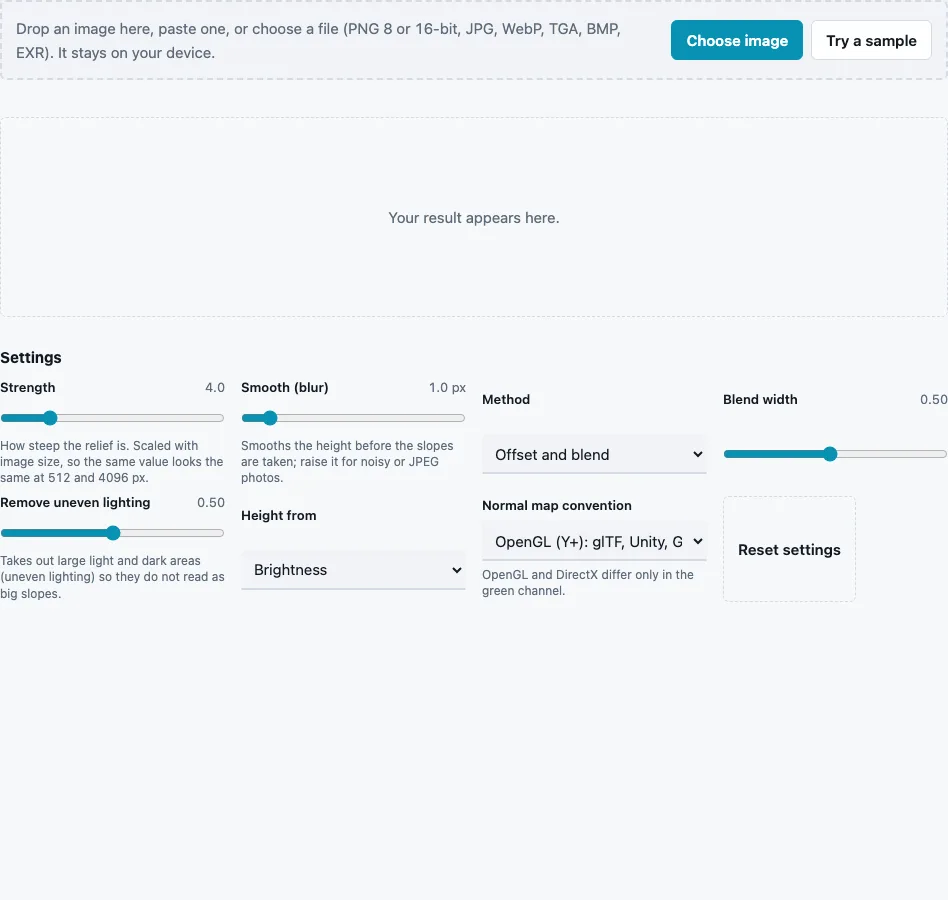
- Drop a photo or texture on the tool, paste it or press Choose image. Try a sample loads a crop of a brick wall whose edges do not match.
- Choose the Method: Offset and blend (default, keeps the size), Mirror (doubles the size, symmetric) or Edge ramp (removes the brightness step at the edges).
- Set Blend width (0.05 to 1, default 0.5): how far into the image the transition reaches, as a fraction of half the image.
- Set Strength (0 to 20, default 4) and Smooth (blur) (0 to 10 px, default 1) for the relief.
- Keep Remove uneven lighting (default 0.5) above 0, so a bright corner does not become a slope that breaks the tiling.
- Pick Height from and the Normal map convention.
- Read Seam ratio before and Seam ratio after in the stats, tick Show 2 × 2 tiled in the result view, and set Tiling to 3 × 3 in the 3D preview.
- Press Download Normal map, Download Texture, Download Height map or Download all (ZIP).
Use all three files together. Mixing the new normal map with the original, untiled colour photo brings the seam back in the colour.
Choose the crop before you load it. An evenly lit patch without a single eye-catching feature tiles far better than a whole wall with a window, whatever method you use. If Seam ratio after is still above 1.5, widen the blend or try another method; the number and the 2 × 2 view should agree.
Why does a normal map show seams when it tiles?
There are two causes. The texture itself does not match at its edges, so the colour jumps where copies meet. And a normal map computed without wrapping treats the border as the end of the surface, so the slopes along the edge are wrong. Either one draws a line at every repeat, and fixing only the colour leaves the line in the lighting.
This page removes both. The texture is blended so that its opposite edges continue each other, and then the edge filter reads past each border into the opposite side, as if the image were already repeated.
How the methods compare:
| Method | Size | Look | Watch out for |
|---|---|---|---|
| Offset and blend | same | natural | a softer, ghosted band where the shifted copy is mixed in |
| Mirror | doubled | always tiles, visibly symmetric | mirrored patterns read as kaleidoscopic |
| Edge ramp | same | keeps detail sharp | flattens a brightness gradient across the image |
What is the seam ratio?
The seam ratio divides the average step between pixels that touch across the wrap edge by the average step between ordinary neighbouring pixels. About 1 means the edge looks like any other pixel step, so no seam is visible. On the built-in brick crop it falls from 17.95 before to 0.35 after with the default settings. Values below 1 simply mean the blended border area is smoother than the rest.
Which method should I pick?
Start with Offset and blend. Switch to Edge ramp when the ghosting in the middle bothers you and the texture has no strong light gradient, and to Mirror for patterns where symmetry does not show, such as noise, sand or fabric.
What happens at the edges of the normal map?
With wrapping, the pixel in the last column uses the first column as its right-hand neighbour, and the bottom row uses the top row. The slopes across the border are then the same as anywhere else in the texture, so the lighting continues through the join. Without wrapping, the edge filter would repeat the border pixel instead, and a thin flat line would appear at every repeat.
Questions and answers
How do I make a normal map tile?
Make the texture tile first, then compute the normals with wrap-around edges. This page does both from one upload, so the colour, height and normals all match.
Can I use an existing normal map?
Not here: blending normal maps as images breaks the vectors. Make the colour texture tileable, then generate the normals from it, or rebake the normal map from tileable height.
Why does the same strength look different on large and small images?
It should not: strength is scaled with the image size, so a 512 px and a 2048 px copy of the same texture get the same relief.
Why does the tiled preview still show repetition?
The seam is gone, but a distinctive spot repeats in a grid. Pick a crop without one, or use a larger tile.
Which normal map convention should I pick?
OpenGL (Y+) for glTF, Unity and Godot, whose documentation asks for Y+. Choose DirectX (Y−) if your engine expects it.
Does Mirror work for bricks?
It tiles, but mirrored bricks break the running bond pattern. Offset and blend suits regular patterns better.
Is the height map tileable too?
Yes. It is computed from the tileable texture with the same wrap-around edges, so the height, the normals and the colour all line up.
Related tools
- Make Texture Seamless: four methods, for the colour texture alone.
- Tileable Texture Tester: measure the seam of any texture.
- Seamless Texture Generator: patterns that tile by construction.
- Normal Map Generator: normals with all four edge filters.
- Image to Normal Map: photo-tuned normals without tiling.
- PBR Texture Generator: the rest of the material from the tiled texture.
- Normal Map Viewer: light the tiled normals on a plane.