
Roughness Map Generator
Make a roughness map from a photo or albedo and set its range, so shiny and dull areas read right in a PBR shader.
Free · runs in your browser · nothing is uploaded
Recent
Your last 10 settings, saved only in this browser. Nothing is uploaded.
How to use the Roughness Map Generator
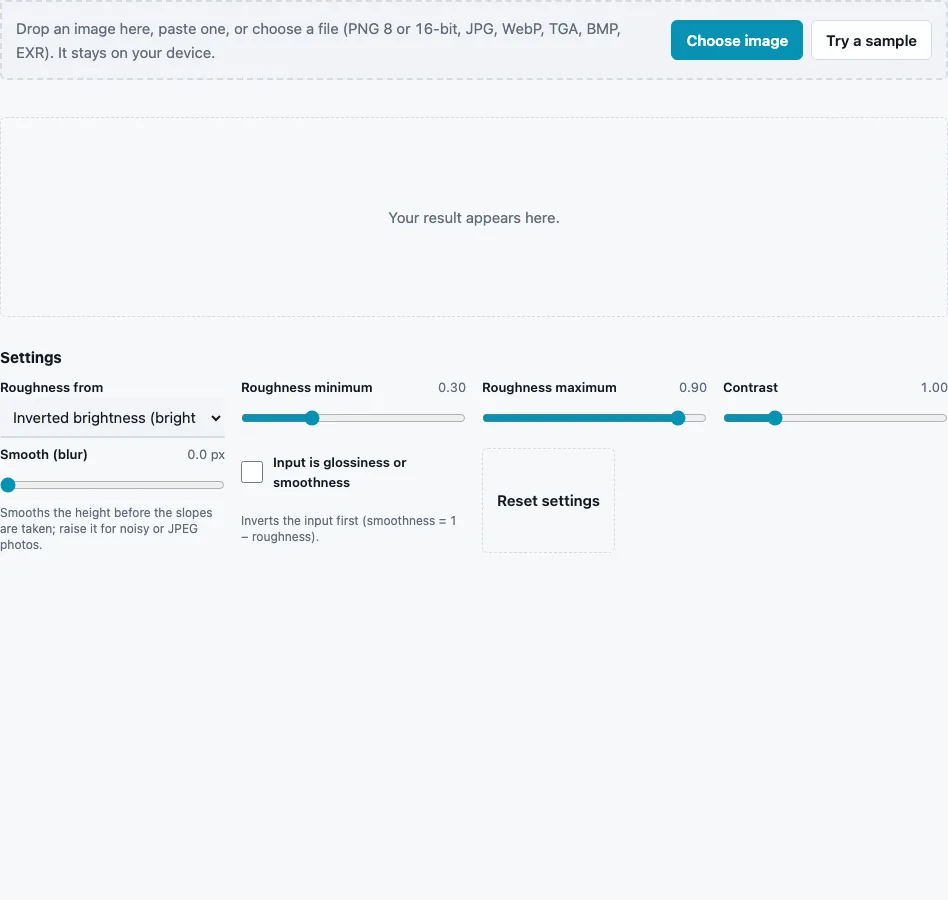
- Drop a photo, texture or gloss map on the tool, paste it or press Choose image. Try a sample loads a brick wall.
- Choose Roughness from: Inverted brightness (bright = smooth; default), Brightness (bright = rough), Local detail only, or Brightness, remapped.
- Set Roughness minimum (default 0.3) and Roughness maximum (default 0.9). Values from 0 to 1 are squeezed into this range, so nothing ends up below the minimum or above the maximum.
- Use Contrast (0.2 to 4, default 1) to spread or squeeze the values before they are remapped.
- Raise Smooth (blur) (0 to 10 px, default 0) if grain in the photo makes the reflections look speckled.
- Tick Input is glossiness or smoothness when you load a gloss or smoothness map; it is inverted first.
- Switch Show in the 3D preview to Roughness only to see the map, or Lit material to see reflections, then press Download Roughness.
The stats line shows the minimum, maximum and mean of the result; on the brick sample with defaults they are 0.632, 0.811 and 0.7, a fairly matte surface, as brick should be. To convert an existing roughness map into smoothness, load it, choose Inverted brightness and set the range to 0 and 1.
Judge the map on the lit sphere rather than as a grey picture. Drag the light (Shift + drag) across the surface: where the highlight stays tight, the map says smooth; where it spreads into a dull sheen, it says rough. If the whole surface looks like wet plastic, raise the minimum.
Roughness versus glossiness: how do I convert?
Invert the map: smoothness or glossiness = 1 − roughness, and roughness = 1 − glossiness. A roughness of 0.3 is a smoothness of 0.7. Engines in the metallic/roughness workflow, glTF among them, want roughness; shaders built around smoothness or the specular/gloss workflow want the inverted map.
| Roughness | Smoothness / glossiness | Reflections |
|---|---|---|
| 0.0 | 1.0 | sharp, mirror-like |
| 0.3 | 0.7 | glossy, slightly blurred |
| 0.7 | 0.3 | broad and dim |
| 1.0 | 0.0 | none visible, fully matte |
On this page, tick Input is glossiness or smoothness and the input is inverted before anything else; the ORM Texture Packer does the same automatically when it fills the alpha channel of a Unity HDRP mask map, which holds smoothness.
How does an image become a roughness map?
The image is turned to grey, optionally inverted as a gloss input, blurred, passed through the chosen mode, stretched by contrast around mid grey and finally remapped to the minimum and maximum. In Inverted brightness mode, bright parts become smooth; in Brightness mode, bright parts become rough; Local detail only keeps the small variation around mid grey and ignores large light changes.
Can colour brightness determine physical roughness?
Only loosely. Dust, scratches and worn paint are often lighter and rougher at the same time, while dark wet stone is smooth. Brightness is a hint, so the minimum and maximum keep the map within a plausible range for the material.
What do the four modes do?
| Mode | Value before remapping | Use it for |
|---|---|---|
| Inverted brightness | 1 − grey | worn or polished highlights on dark surfaces |
| Brightness | grey | dust, chalk or scratches that are lighter and rougher |
| Local detail only | 0.5 + (grey − its blur) | photos with uneven light, keeping only small variation |
| Brightness, remapped | grey, range set only by the sliders | when you want the minimum and maximum to do all the work |
Local detail only compares each pixel with a blurred copy of the image (at least 8 px wide), so a shadow across half the photo no longer turns half the surface rough.
Questions and answers
What is a roughness map?
A grey linear map where 0 means a perfectly smooth surface with sharp reflections and 1 a fully rough one that scatters light evenly.
Should roughness maps use sRGB?
No. Roughness is data, not colour; import it with sRGB turned off, or the mid values shift.
Why does the output range matter?
Real materials rarely reach pure 0 or pure 1. Keeping the map within, say, 0.3 to 0.9 avoids mirror spots and dead-flat patches the material would never have.
Which mode should I start with?
Inverted brightness for most photos of stone, brick or wood, Local detail only when the photo has uneven light you cannot remove.
Can I make a roughness map from a normal map?
Not here; roughness comes from a colour or grey image. Use the photo the normal map was made from.
How do I put roughness into an ORM texture?
Download it and load it into the green slot of the ORM Texture Packer, together with AO and metallic.
Why is my roughness map almost one flat grey?
The photo has little contrast, or the minimum and maximum are close together. Raise Contrast or widen the range.
Do I need a 16-bit roughness map?
Rarely. Roughness changes smoothly, so the 8-bit PNG default is usually enough; pick PNG 16-bit in the File format menu if your pipeline keeps 16-bit data.
Related tools
- Specular Map Generator: glossiness for the specular/gloss workflow.
- Metallic Map Generator: the metal mask that goes with roughness.
- ORM Texture Packer: roughness into green, or smoothness into alpha.
- PBR Texture Generator: roughness together with the full set.
- Ambient Occlusion Map Generator: the occlusion channel of the ORM.
- PBR Material Viewer: check reflections on a lit sphere.
- Texture Channel Splitter: pull roughness out of a packed texture.