
PBR Texture Generator
Drop a photo and get a full PBR set with a 3D preview: albedo with baked shading evened out, normal, height, AO, roughness, metallic and ORM.
Free · runs in your browser · nothing is uploaded
Recent
Your last 10 settings, saved only in this browser. Nothing is uploaded.
How to use the PBR Texture Generator
- Drop a photo or texture on the tool, paste it or press Choose image. Try a sample loads a brick wall. Images above 2048 px are scaled to 2048 px on this page (1024 px on phones).
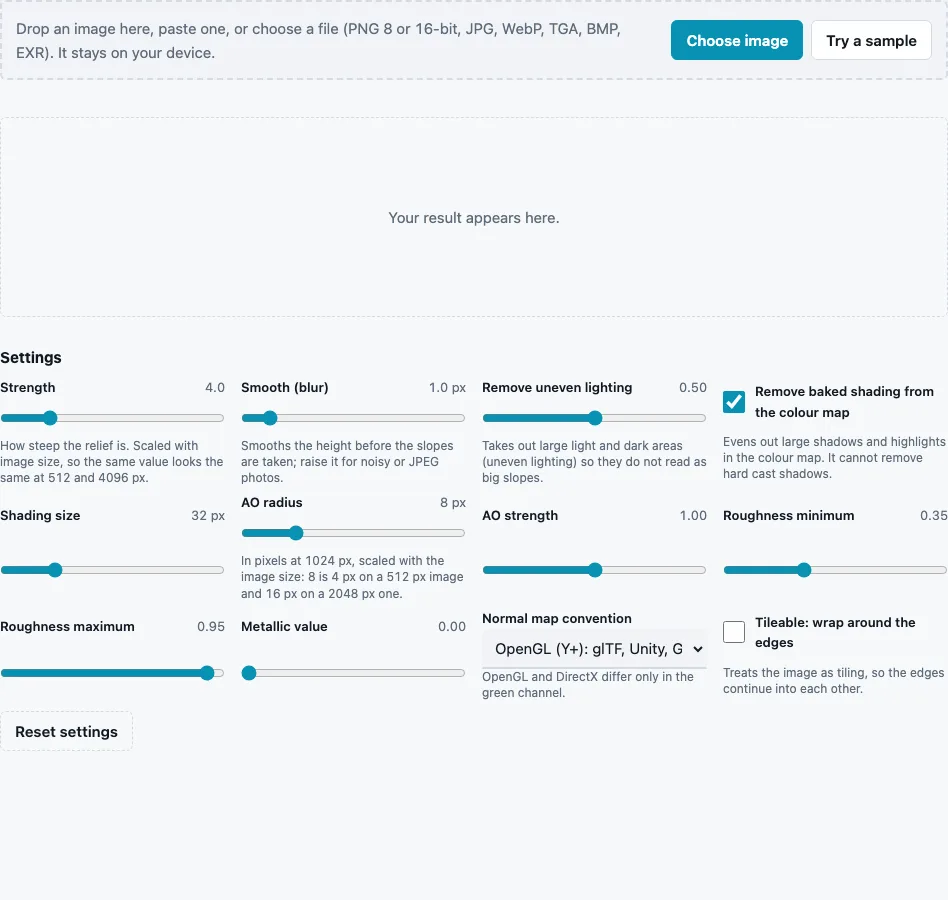
- Shape the relief with Strength (default 4), Smooth (blur) (default 1 px) and Remove uneven lighting (default 0.5).
- Keep Remove baked shading from the colour map on and set Shading size (4 to 128 px, default 32) for the albedo.
- Set AO radius (1 to 32 px, default 8) and AO strength (0 to 2, default 1).
- Set Roughness minimum (default 0.35) and Roughness maximum (default 0.95).
- Set Metallic value (0 to 1, default 0) for the whole material.
- Choose the Normal map convention and tick Tileable: wrap around the edges if the texture repeats.
- Inspect the material in the 3D preview; Show can isolate AO, roughness, metallic or height.
- Press Download all (ZIP), or download any single map.
The ZIP holds all seven files plus a readme that names the normal map convention and says which files are colour (sRGB) and which are data. Large photos take a few seconds, because AO and de-lighting look at a wide neighbourhood of every pixel.
Work through the maps in the order they depend on each other: settle the relief first, because height feeds the normal map and the AO, then the albedo, then roughness and metal, which do not affect the others.
Which PBR maps can be made from one photo?
All the usual ones, but only as estimates: albedo, height, normal, AO and roughness are derived from the photo’s brightness, and metallic is the single value you set. A photo cannot tell polished black stone from rough black paint, so treat roughness and metallic as a starting point and correct them by hand where you know the material.
| Output | How it is made | Kind |
|---|---|---|
| Albedo | the photo, divided by a blurred luminance in linear light when shading removal is on | colour (sRGB) |
| Normal map | slopes of the height, OpenGL or DirectX | data |
| Height map | brightness, 16-bit by default | data |
| AO map | horizon-based occlusion from the height | data |
| Roughness | inverted brightness, remapped to 0.35–0.95 | data |
| Metallic | your Metallic value everywhere | data |
| ORM (packed) | R = AO, G = roughness, B = metallic | data |
Shading removal keeps the average brightness and evens out broad shadows and highlights; it cannot remove hard cast shadows. AO is computed at up to 1024 px and scaled up, and its radius is given in pixels at 1024 px.
What are PBR textures?
PBR textures describe one material in separate maps: colour, surface direction, smoothness, metalness and occlusion, sometimes height. The renderer combines them to light the surface the way real materials respond to light. Roughness runs from 0 (mirror-like) to 1 (fully matte); metallic is 0 for non-metals and 1 for bare metal.
Only the colour map is sRGB. Normal, height, AO, roughness, metallic and packed maps are linear data and must be imported with sRGB off. sRGB decodes as v ÷ 12.92 below 0.04045 and ((v + 0.055) ÷ 1.055)^2.4 above, so an encoded 0.5 is linear 0.214. The ORM layout matches glTF 2.0, which reads occlusion from red, roughness from green and metalness from blue.
Which maps should I check by hand?
Roughness and metallic first. Bright paint becomes smooth and dark paint rough, which real materials do not always follow; narrow the minimum and maximum, or edit the map, where you know better. Then the AO: a radius that is too large darkens whole bricks instead of only the joints. The normal and height maps are usually the most reliable part of the set, as long as the photo was evenly lit.
Questions and answers
How do I generate all PBR maps from one image?
Load the image, adjust the sliders while watching the 3D preview, and press Download all (ZIP). The files reflect the settings at the moment you download.
Can you make roughness and metallic maps from just a photo?
Roughness, as an estimate: bright areas become smoother within the range you set. Metallic is not guessed; the tool fills in the value you choose, because brightness says nothing reliable about metal.
How do I use these PBR maps in Unreal Engine or Unity?
Import the albedo as colour (sRGB on) and every other map as data (sRGB off), choosing the normal map convention your engine expects. In Unreal, wire the ORM file’s R to ambient occlusion, G to roughness and B to metallic. Unity does not read ORM: repack the maps with the ORM Texture Packer’s Unity HDRP mask layout.
Why does my displacement look stepped, and will a 16-bit height map fix it?
Stepping comes from too few height levels. The height map is 16-bit by default, with 65,536 levels instead of 256, which removes the terraces; it cannot add detail the photo never had.
Can AI or a chatbot make PBR textures?
Some services use AI models; this page does not. Fixed formulas mean the same photo and settings always give the same maps.
Can I use the textures in commercial projects?
Yes. The site terms say what you generate is yours to use, including commercially, provided you have the rights to the source photo.
Related tools
- PBR Material Viewer: load the downloaded set and check it together.
- ORM Texture Packer: repack the maps for the Unity HDRP mask or MRAO.
- Roughness Map Generator: four ways to estimate roughness.
- Ambient Occlusion Map Generator: up to 32 directions and a larger radius.
- Image to Normal Map: normals with a fine-detail boost.
- Displacement Map Generator: a midpoint and scale for the height.
- Make Texture Seamless: make the photo tile before generating the set.
- Metallic Map Generator: a metal mask from brightness or a key colour.