
PBR Material Viewer
Drop your PBR texture maps and check the material on a sphere, cube or plane with GGX lighting, tiling and displacement.
Free · runs in your browser · nothing is uploaded
Recent
Your last 10 settings, saved only in this browser. Nothing is uploaded.
How to use the PBR Material Viewer
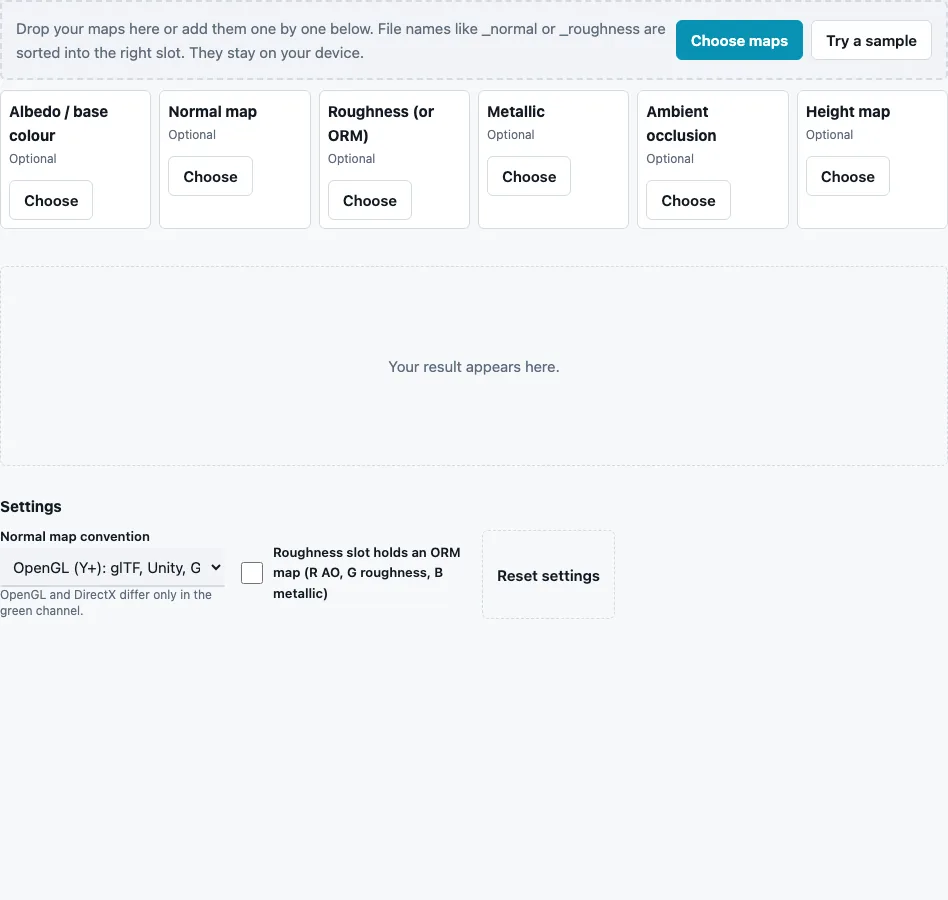
- Drop all the maps at once or press Choose maps. File names containing words like _normal or _roughness are sorted into the right slot; the rest fill the next empty one. Try a sample loads a brick material.
- Check the six slots: Albedo / base colour, Normal map, Roughness (or ORM), Metallic, Ambient occlusion and Height map. Use Replace or Remove on any slot.
- If the roughness slot holds a packed texture, tick Roughness slot holds an ORM map (R AO, G roughness, B metallic).
- Set Normal map convention to the convention of your normal map.
- In the 3D preview, choose Shape and Tiling, move Light direction and Light height, and raise Displacement to push the surface out with the height map.
- Use Show to switch between Lit material, Normals, Clay and the single-map views (Albedo only, AO only, Roughness only, Metallic only, Height only).
- Press Download 3D view (PNG) to save the view.
Drag to rotate, scroll or pinch to zoom and hold Shift while dragging to move the light. On a phone, turn on scroll lock so vertical drags rotate the shape. Reset view brings the camera back.
Set Tiling to 2 × 2 or 3 × 3 on the plane to see whether the material repeats cleanly, and use the cube to check how the maps meet at edges.
What do the missing maps default to?
Neutral values that leave each property out of the picture: a light grey base colour, a flat normal, roughness 0.5, no metal and no occlusion. A missing height map means no displacement. That way any single map can be judged alone, for example a roughness map on a plain grey sphere.
| Slot | Value used when empty | How a loaded map is read |
|---|---|---|
| Albedo / base colour | light grey | sRGB colour |
| Normal map | flat | linear, in the chosen convention |
| Roughness | 0.5 | linear grey (ORM: green channel) |
| Metallic | 0, no metal | linear |
| Ambient occlusion | 1, no occlusion | linear |
| Height map | no displacement | linear, mid grey = surface |
Only the albedo is decoded as sRGB; every other map is read as data, the way engines expect. A data map exported with colour management applied looks wrong here for the same reason it looks wrong in an engine.
How do I preview PBR textures online?
Load the maps of one material, set the convention, and light the shape from a few directions. Each map controls one property: albedo the colour, the normal map the small-scale direction, roughness how sharp the highlights are, metallic whether the colour tints reflections, AO how dark the crevices get and height how far the surface moves when displacement is on.
Why does the material look wrong?
Most problems come from one of three mix-ups, and the single-map views find them quickly:
| Symptom | Likely cause |
|---|---|
| bumps look like dents | normal map in the other convention |
| surface shiny where it should be matte | a smoothness or gloss map loaded as roughness |
| colours washed out or too dark | a map read with the wrong colour space |
How is the material shaded?
With a normal map alone, the viewer uses simple Blinn-Phong lighting, like the normal map viewer. As soon as a colour, roughness or metallic map is loaded it switches to GGX, the microfacet model physically based renderers use, so the size and brightness of the highlight follow the roughness map and metal areas tint their reflections with the albedo colour. The light is fixed relative to the camera unless you move it, so rotating the shape shows the material from all sides under the same light.
Questions and answers
Can I view a packed ORM texture?
Yes. Load it into the roughness slot and tick the ORM option; red becomes AO, green roughness and blue metallic.
Why does my material look too shiny?
The roughness values are too low, often because a smoothness map was loaded as roughness. Invert it with the Roughness Map Generator.
Can I save an image of the material?
Yes. Download 3D view (PNG) saves exactly what the 3D view shows, at its current angle and light.
Why do the bumps look inverted?
The normal map uses the other convention. Switch Normal map convention and compare.
Does this page create any texture files?
No. It only displays maps; use the generators on this site to make or convert them.
What if WebGL is not available?
The 3D view needs WebGL. Without it the page says so, and you can still check maps one by one on the other tools.
Can I compare two materials side by side?
Not on one page. Open the viewer in two browser tabs, load one material in each and set the same shape and light.
Why do my maps need to be the same size?
They do not, strictly: each map is stretched over the same shape. Maps of different sizes still line up if they were made for the same UV layout.
Related tools
- PBR Texture Generator: make a full map set from one photo.
- Normal Map Viewer: focus on the normal map alone.
- ORM Texture Packer: pack AO, roughness and metallic into one file.
- Texture Channel Splitter: unpack a texture you are not sure about.
- Roughness Map Generator: invert a gloss map into roughness.
- Normal Map Converter: flip the green channel.
- Tileable Texture Tester: measure a seam before you tile.