
Normal Map Viewer
Open a normal map and see it lit in 3D. Move the light to check that bumps rise and grooves sink.
Free · runs in your browser · nothing is uploaded
Recent
Your last 10 settings, saved only in this browser. Nothing is uploaded.
A normal map viewer shows what a normal map does to light, which the purple-blue image itself does not tell you. This one lights your map in two ways: a flat lit preview that you can download as an image, and a 3D preview on a sphere, plane, cube or cylinder where you drag to rotate and move the light. Both follow the same light direction and height sliders, so you can sweep the light around and watch whether raised details catch it on the correct side. The stats add a guess of the map’s convention, OpenGL or DirectX, and its mean vector length. It is the quickest way to answer whether a downloaded or baked map is the right way round before it goes into a material.
It accepts PNG in 8 or 16-bit, TGA, JPG, WebP, BMP and EXR.
How to use the Normal Map Viewer
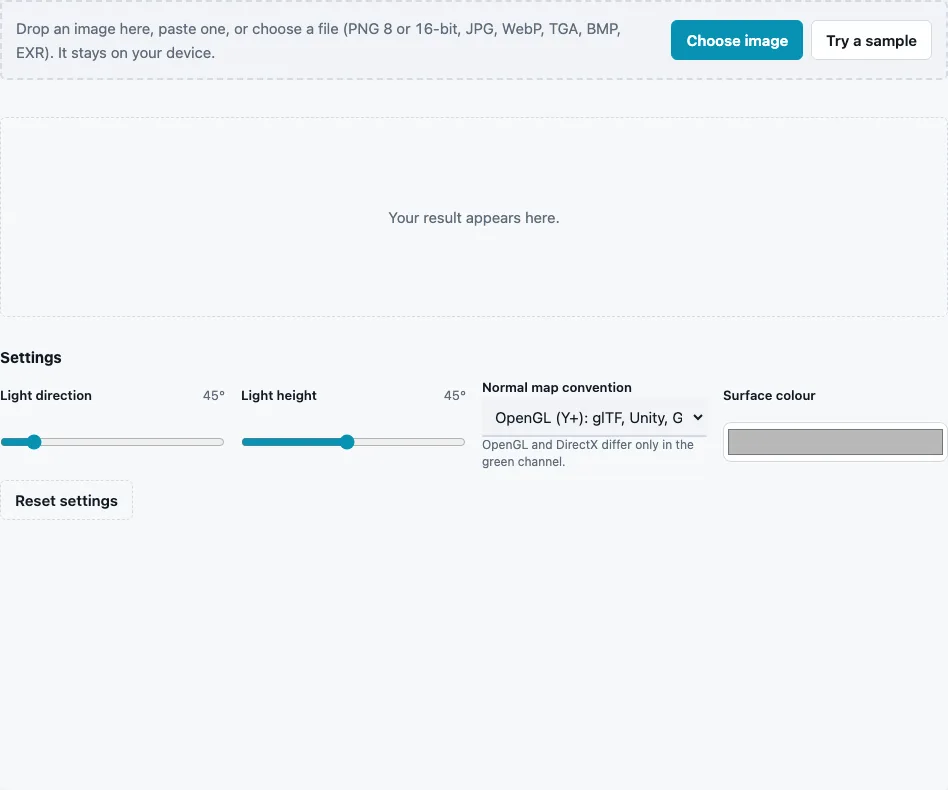
- Drop the normal map on the tool, paste it or press Choose image. Try a sample loads a brick normal map.
- Move Light direction (0 to 360°, default 45) to swing the light around the surface.
- Move Light height (5 to 90°, default 45). Low values rake across the surface and show relief most clearly.
- Set Normal map convention to OpenGL (Y+) or DirectX (Y−) and watch whether the bumps flip.
- Pick a Surface colour (default #b8b8b8) if a darker or warmer base reads better.
- In the 3D preview, choose Shape and Tiling, drag to rotate, scroll or pinch to zoom, and use Show to switch between Lit material, Normals and Clay.
- Press Download Lit preview for the flat image, or Download 3D view (PNG) for a snapshot of the 3D view.
On a phone, turn on scroll lock above the 3D view so dragging rotates the shape instead of scrolling the page.
Use the Normals view to see the map as colours on the shape, and Clay to judge relief without the surface colour. Tiling 2 × 2 or more shows whether the map repeats without a visible edge.
The lit preview image and the 3D view use the same light, so a screenshot of either is a fair record of how the map behaves.
Why do my bumps look like dents?
The map’s green channel follows the other convention than the viewer or engine expects. OpenGL-style maps store “up” as more green and DirectX-style maps as less, so reading one as the other flips every detail along Y: light seems to come from below and raised parts look sunken. Switching Normal map convention fixes the view.
A simple test with the sliders:
- Set Light height to about 20° and Light direction so the light comes from the top of the image.
- Look at a detail you know is raised, such as a rivet or a brick. Its top edge should be bright.
- If the bottom edge is bright instead, switch the convention. If the left and right sides are also swapped, the red channel is inverted too; the converter’s Also flip X (red) handles that.
The stats line gives a second opinion: the convention guess and its confidence come from how well the red and green slopes fit together, and say unknown when the map has too little relief. On the built-in sample the guess is OpenGL with confidence 0.99.
What does the lit preview show?
It treats the map as a flat surface seen straight on, lit by one light, with simple Blinn-Phong shading in your surface colour. Every pixel’s brightness comes only from its normal, so the image shows the relief the map carries and nothing else. The 3D preview adds shape and perspective, which reveals seams and stretching that a flat view hides.
What can the 3D preview show that the flat image cannot?
Seams at the texture border appear as lines when Tiling is 2 × 2 or more. Stretching shows on the cylinder and sphere. A map that is too strong can look crumpled at grazing light, which the flat view hides because it is always seen head-on. The Displacement slider starts at 0 here, because a normal map alone carries no height to push the surface out.
Questions and answers
How do I view a normal map in 3D?
Load it and use the 3D preview below the tool. Pick a shape, set tiling to repeat it, drag to rotate and hold Shift while dragging to move the light.
Can I check a normal map made for Unreal Engine?
Yes. Set the convention to DirectX (Y−) for maps made that way, then compare with OpenGL to see which one lights correctly.
Can I save the preview?
Yes. Download Lit preview saves the flat lit image, and Download 3D view (PNG) saves the current 3D view.
Why does the mean length matter?
A valid map has vectors of length 1, so a mean length well below 1 means the map was resized, blurred or compressed without renormalizing. The Normal Map Checker shows where.
Which shape should I use?
The plane for flat surfaces such as walls and floors, the sphere to see the map under light from every angle at once, and the cube or cylinder to check edges and wrapping.
What does the Surface colour change?
Only the base colour used for the lit views. A mid grey shows relief best; very dark or saturated colours hide it.
Can I view a map that has an alpha channel?
Yes. The alpha channel is ignored; only the red, green and blue values are read as the direction.
Related tools
- Normal Map Converter: flip green, or red too, once you know.
- Normal Map Checker: an error map of short and inward vectors.
- PBR Material Viewer: the normal map with colour, roughness and metal.
- Normal Map Generator: make a map from a texture or photo.
- Combine Normal Maps: add a detail layer and view the blend.
- Curvature Map Generator: edges and grooves as a grey mask.
- Normal Map to Height Map: turn the slopes back into height.