
Normal Map to Height Map
Rebuild a grey height map from a normal map when you need displacement or parallax and only have the normals.
Free · runs in your browser · nothing is uploaded
Recent
Your last 10 settings, saved only in this browser. Nothing is uploaded.
How to use Normal Map to Height Map
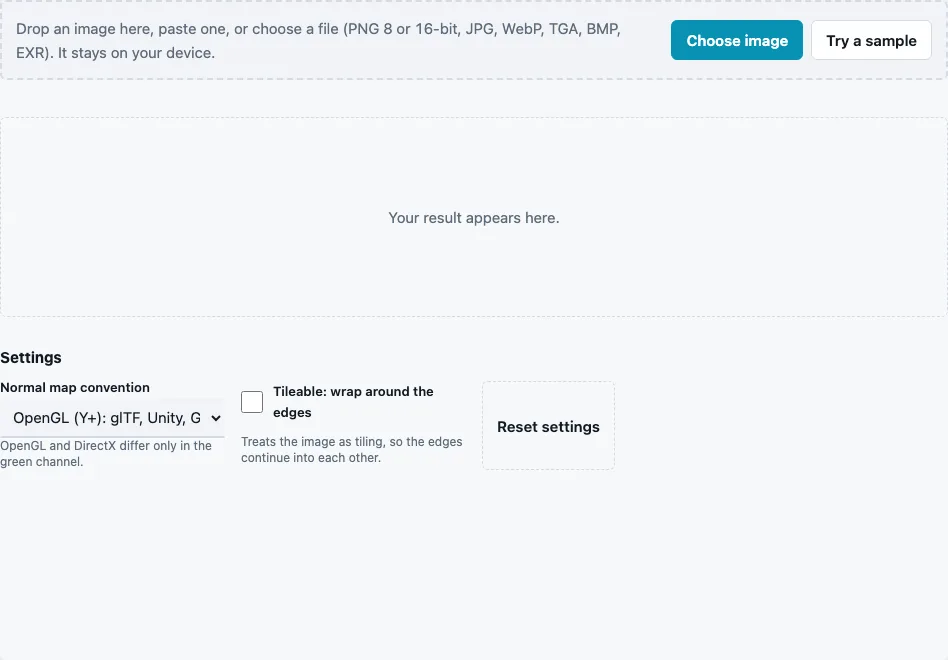
- Drop the normal map on the tool, paste it or press Choose image. Try a sample loads a brick normal map.
- Set Normal map convention to the convention the map was made in: OpenGL (Y+) or DirectX (Y−). If you are unsure, run the map through the converter’s guess first.
- Tick Tileable: wrap around the edges only when the normal map tiles; otherwise leave it off and the edges are handled by mirroring.
- Wait a moment: this tool solves for the whole image at once, which takes a few seconds on large maps. Maps larger than 1024 px are scaled to 1024 px.
- Check the result in the 3D preview, which shows it as a displaced plane next to the normals.
- Press Download Height map. The default format is a 16-bit PNG; the File format menu also offers 8-bit PNG and TGA.
Black in the result is the lowest point and white the highest. The values are relative: the deepest groove becomes 0 and the highest bump 1, whatever their real depth was.
Fix problems in the normal map before you integrate it. Run it through the Normal Map Checker if it was resized or edited, and through the converter if you are unsure of its convention; both take seconds and decide whether the height comes out clean or tangled.
Can you turn a normal map back into a height map?
Yes, approximately. A normal map stores slopes, and slopes can be integrated back into a surface. The result has the right shape but only relative heights, and features a normal map cannot express, such as vertical cliffs or gaps between separate objects, come back softened or missing.
The tool takes the slope in X and Y from each normal (dx = −nx ÷ nz and the matching Y slope), transforms both slope fields to frequencies, solves for the height whose slopes match them best in the least-squares sense, and transforms back. Without wrapping, the slope field is mirrored first so the edges join, which avoids a seam at the border.
A round trip through the engine shows how well this works on a clean map. The built-in 256 px height sample was turned into a normal map, rounded to 8-bit and integrated again:
| Test | Correlation with the original height |
|---|---|
| correct convention | 1.000 |
| wrong convention (green flipped) | 0.004 |
With the right convention the shape comes back almost exactly; with the wrong one the result has nothing to do with the original.
Why does the result drift on real maps?
Real normal maps are not perfect slope fields. Painted details, mirrored UVs, seams and compression all add slopes that do not fit together, and integration spreads that error as broad, gentle tilts across the image. Large flat areas that should be level may come out slightly domed. An overall slope across the whole map is removed (left and right edges, and top and bottom, come out level on average), which also keeps the half-step offset of 8-bit flat normals from turning into a tilt.
Which convention should I pick?
The one the map was made with. Green carries the Y slopes, so a flipped green channel means every Y slope has the wrong sign and the two halves of the problem contradict each other. If the result looks like twisted noise, switch the convention.
What can the height map be used for?
Displacement or parallax in a renderer, a starting point for a terrain or relief, or an input to the AO and curvature generators on this site. Because heights are relative, set the real depth in the target program, and check the result on a displaced plane before relying on fine detail: integration recovers broad shapes more faithfully than one-pixel features.
Questions and answers
Can every normal map be converted perfectly?
No. Steps, overhangs, separate objects and very large gentle shapes are not fully stored in the slopes, so they cannot be recovered exactly.
Why is the height only relative?
A normal map holds directions, not distances. The result is stretched to fill 0 to 1; set the real depth with your renderer’s displacement or height scale.
How large can the map be?
Up to 1024 px on the long side; larger maps are scaled down first. Integration uses the whole image at once, which is why this tool is slower than the others.
When should I turn on tileable mode?
When the normal map repeats without seams. The integration then treats opposite edges as neighbours, and the height map tiles too.
Which file format should I download?
16-bit PNG, the default. Integrated heights change smoothly, and 8-bit would turn gentle slopes into steps.
Can I improve a noisy result?
Fix the normal map first: renormalize it with the checker, convert it to the right convention, then integrate again.
Does the 3D preview change the file?
No. The preview’s displacement slider only changes the view; the downloaded file always holds heights from 0 to 1.
Why does a flat normal map give a grey result?
A map with no slopes has nothing to integrate, so every pixel ends up at the same value, which the tool writes as mid grey.
Related tools
- Height Map to Normal Map: the forward direction, from heights to normals.
- Height Map Generator: height from a photo when you have the photo.
- Displacement Map Generator: set a midpoint and scale for the result.
- Normal Map Converter: guess and fix the convention first.
- Normal Map Viewer: check the normals before you integrate them.
- Curvature Map Generator: edges and grooves straight from the normals.
- RAW Heightmap to PNG Converter: save the height as RAW for terrain tools.