
Normal Map Generator
Drop a texture or height map and get a normal map with a live 3D preview, in OpenGL or DirectX, as 8 or 16-bit PNG or TGA.
Free · runs in your browser · nothing is uploaded
Recent
Your last 10 settings, saved only in this browser. Nothing is uploaded.
How to use the Normal Map Generator
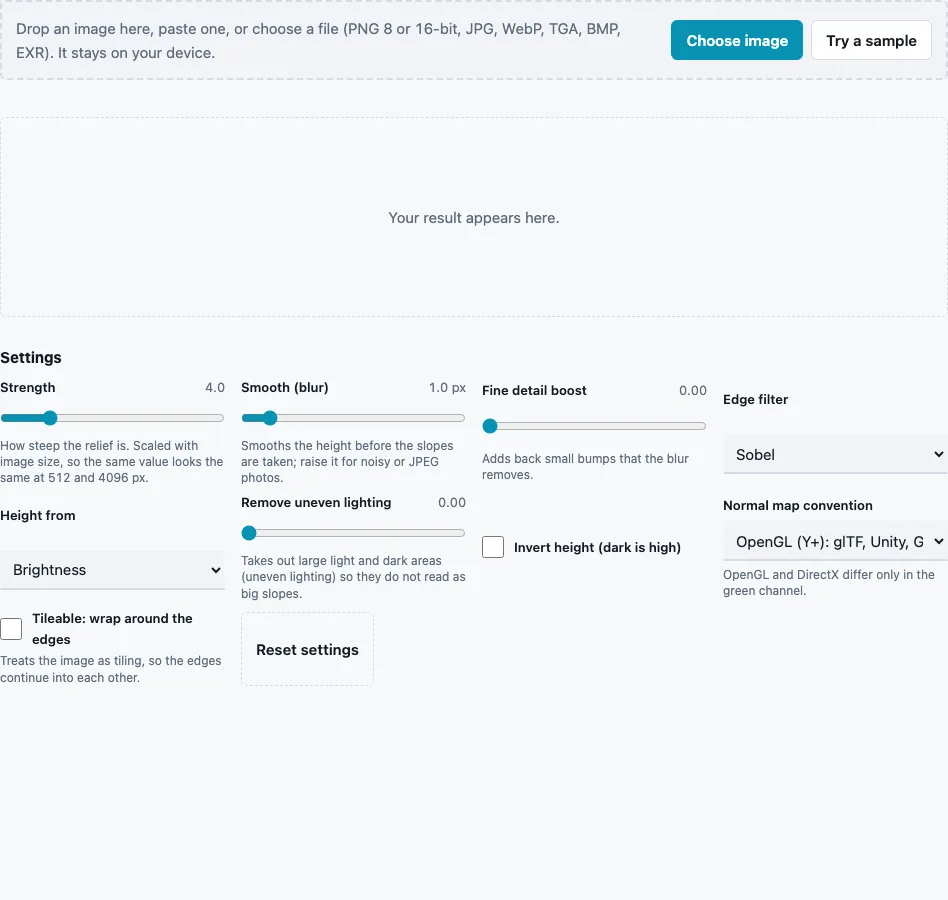
- Drop an image on the tool, paste it or press Choose image. PNG (8 or 16-bit), JPG, WebP, TGA, BMP, GIF and EXR all work. Try a sample loads a brick wall.
- Pick Height from: Brightness (default), Red channel, Green channel, Blue channel or Saturation.
- Set Strength (0 to 20, default 4) to make the relief steeper or flatter.
- Raise Smooth (blur) (0 to 10 px, default 1) for noisy or JPEG photos, and Fine detail boost (0 to 1) to bring small bumps back.
- Choose an Edge filter: Sobel (default), Scharr, Prewitt or Central difference.
- Raise Remove uneven lighting if a light gradient across the photo shows up as one big slope.
- Tick Invert height (dark is high) when dark areas should stand out, and Tileable: wrap around the edges for textures that repeat.
- Set Normal map convention to OpenGL (Y+) or DirectX (Y−) for your engine.
- Read the stats line (Size, Mean tilt, Max tilt, Flat %) and check the 3D preview.
- Pick a File format and press Download Normal map, Download Height map or Download all (ZIP).
Changed settings are saved in the page address, so a bookmark or a shared link reopens the tool with them (the image is not part of the link). Reset settings brings back the defaults.
What does the strength value mean?
Strength multiplies the slopes before they become directions, and it is scaled with the image size: s = strength × 16 × (long side in px) / 1024. That is why the same value gives the same relief on a 512 px and on a 4096 px copy of a picture. At strength 1 on a 1024 px image, a height step of 1/16 of the full range from one pixel to the next is a 45 degree slope.
These tilts come from the engine, on a test ramp that climbs one grey level (1/255) per pixel on a 1024 px image:
| Strength | Tilt of the normal |
|---|---|
| 1 | 3.6° |
| 4 (default) | 14.1° |
| 10 | 32.1° |
The same picture at 512 px climbs two grey levels per pixel and still gives 14.1° at the default. On the built-in brick sample (512 × 512, defaults) the stats line reports a mean tilt of 12.2°, a maximum of 65.9° and 3 % flat pixels; compare those numbers when you tune a texture.
What is a normal map?
A normal map is an image in which each pixel stores a surface direction instead of a colour. Red holds X (right), green holds Y and blue holds Z, pointing out of the surface; each value from −1 to 1 is stored as (n + 1) / 2. A flat pixel is therefore (128, 128, 255) in 8-bit, the pale blue that fills most normal maps.
The direction comes from the height. Brightness is read as height (dark low, light high), the edge filter measures how fast it changes across and down the image, and the normal is that slope tipped away from the uphill side:
| Edge filter | Weights across the direction | Divided by | Character |
|---|---|---|---|
| Sobel (default) | 1-2-1 | 8 | balanced, mild smoothing |
| Scharr | 3-10-3 | 32 | better rotational symmetry |
| Prewitt | 1-1-1 | 6 | plain average |
| Central difference | 0-1-0 | 2 | finest detail, most noise |
A photo has no real depth, so its height is an estimate: a dark stain will read as a dent.
OpenGL or DirectX: which Y axis should I choose?
The two styles differ only in the green channel, so converting replaces G with 255 − G. The glTF 2.0 specification uses “+X is right and +Y is up”, the Unity manual says Unity uses Y+ maps “sometimes known as OpenGL format”, and the Godot docs ask for “OpenGL style”. Unreal Engine textures have a Flip Green Channel setting for maps made the other way round.
Questions and answers
What are the best settings for normal map generation?
Start from the defaults and change one thing at a time: raise Smooth (blur) for grainy photos, raise Remove uneven lighting when big shadows bend the whole map, and lower Strength when the 3D preview looks deeper than the real surface.
What image should I start from?
A texture shot straight on in soft, even light, where the raised parts are lighter than the low parts. A grey height map gives the cleanest result; the Height Map to Normal Map page keeps its 16-bit precision.
Does it work with transparent PNG images?
Yes, but transparency is ignored: height comes from the colour values, and fully transparent pixels often hold black, which reads as low ground. For cut-out sprites use the Sprite Normal Map Generator, which bevels the edges from the alpha.
How do I use the normal map in Unity, Unreal Engine or Blender?
Bring it in as linear data, sRGB off, and mark the texture as a normal map in the import settings. Pick the convention your engine expects before you download, or flip green on import.
Can I use the generated maps commercially?
Yes. The site terms say what you generate is yours to use, including in commercial work. You still need the right to use the source photo.
Related tools
- Image to Normal Map: photo-tuned defaults with stronger lighting clean-up.
- Height Map to Normal Map: for 16-bit or EXR height maps you already have.
- Normal Map Converter: switch a finished map between DirectX and OpenGL.
- Normal Map Viewer: light a map in 3D and spot inverted bumps.
- Combine Normal Maps: add a detail normal map on top of this one.
- PBR Texture Generator: albedo, roughness, AO and ORM from the same photo.
- Seamless Normal Map Generator: make the texture tile first, then the normals.
- Normal Map Checker: measure vector lengths and find broken pixels.