
Normal Map Converter: DirectX ↔ OpenGL
Flip the green channel of a normal map to go from DirectX to OpenGL or back, and see which convention your map most likely uses.
Free · runs in your browser · nothing is uploaded
Recent
Your last 10 settings, saved only in this browser. Nothing is uploaded.
How to use the Normal Map Converter
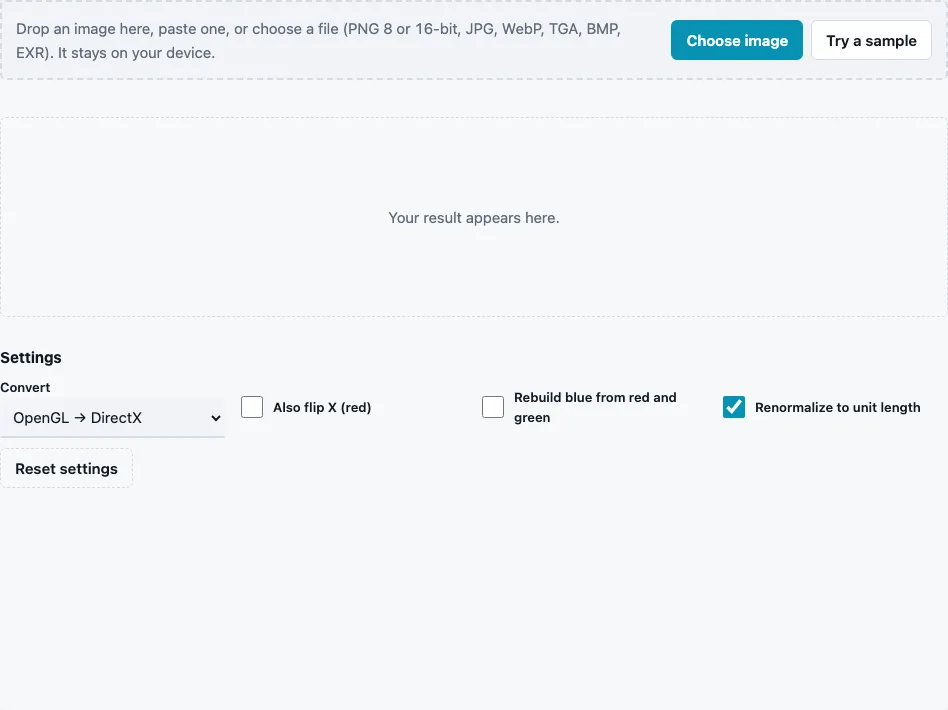
- Drop the normal map on the tool, paste it or press Choose image. Try a sample loads an OpenGL-style map.
- Read Convention guess and Confidence in the stats line before you change anything.
- Choose Convert: OpenGL → DirectX or DirectX → OpenGL. Both invert green; the menu only names the result.
- Tick Also flip X (red) if the map’s left and right are reversed as well.
- Tick Rebuild blue from red and green for two-channel exports whose blue channel is empty or constant.
- Leave Renormalize to unit length on (default) so every vector has length 1 after the change.
- Rotate the 3D preview and move the light (Shift + drag) to confirm that bumps now stand out.
- Pick a File format and press Download Normal map.
The converted map keeps the size of the original, up to 16384 px on the long side. Settings stay in the page address, so a saved link opens the converter with the same options.
If the guess says DirectX and your engine wants OpenGL, choose DirectX → OpenGL; if the guess is unknown, convert, then compare the two versions in the 3D preview with the light above. Rebuilding blue is only needed for maps that look flat, grey or yellow-green because the blue channel was dropped on export.
Which engines use OpenGL and which use DirectX normal maps?
The glTF 2.0 format, Unity and Godot expect OpenGL-style (Y+) maps, where green points up. Epic’s asset guidelines for Unreal Editor for Fortnite list the normal map colour space as DirectX (Y−), and Unreal Engine textures have a Flip Green Channel setting for maps made the other way. When in doubt, check your engine’s import documentation.
These are the statements we checked in each source:
| Software | Expects | What the documentation says |
|---|---|---|
| glTF 2.0 | OpenGL (Y+) | normal vectors use “+X is right and +Y is up” |
| Unity | OpenGL (Y+) | “Unity uses Y+ normal maps, sometimes known as OpenGL format” |
| Godot | OpenGL (Y+) | requires “X+, Y+ and Z+ coordinates, this is known as OpenGL style” |
| Unreal Editor for Fortnite | DirectX (Y−) | normal map colour space: DirectX |
The conversion itself is exact: each green value G becomes 255 − G in 8-bit, red and blue stay. With Renormalize to unit length off, the tool turns the pixel (100, 200, 230) into (100, 55, 230), and converting twice gives back the original file.
How do I know which convention my normal map uses?
Light it. In the 3D preview, put the light above the surface: if raised details look lit from below, the green channel is in the other convention. The tool’s guess does this with numbers. A map baked from a height field has no “curl”, so its red and green slopes agree only under the correct reading; the test compares both readings and reports OpenGL, DirectX or unknown with a confidence from 0 to 1. On the built-in sample it reports OpenGL with confidence 0.99.
It says unknown when there is too little two-way relief, for example a map of straight horizontal grooves. Then decide by eye in the 3D preview or the normal map viewer.
What does renormalizing add?
Renormalizing rescales every vector to length 1. It does not change directions, so it is safe to leave on; it repairs small length errors from 8-bit rounding, earlier edits or a rebuilt blue channel.
Why did my map need converting at all?
Bakers, texture libraries and engines do not agree on one default, so a map that was correct in one program can be inverted in the next. Some texture libraries ship both versions and mark them “GL” and “DX” in the file name; check that suffix before converting anything.
Questions and answers
What is the difference between a DirectX and an OpenGL normal map?
Only the direction of Y. OpenGL stores “up” as more green, DirectX as less green; red and blue mean the same in both.
Should I use normal DX or normal GL?
Use whatever your engine reads natively, so nothing has to be flipped at import. If a texture pack ships both versions, pick the one that matches.
How do I invert the green channel of a normal map?
Load it here and download, or use any image editor’s invert on the green channel only. Inverting all three channels breaks the map.
What does Rebuild blue from red and green do?
It computes z = √(1 − x² − y²) for every pixel. Two-channel formats store only X and Y and expect the shader to rebuild Z the same way.
Why does the convention guess say unknown?
The map has too little relief in both directions, or it is not a tangent-space map baked from a surface. World-space maps and heavily hand-edited maps may not pass it.
Will converting reduce quality?
No. Inverting green is lossless in 8-bit and 16-bit, and red and blue are untouched. Renormalizing may move a value by one step where a vector was not quite unit length.
Related tools
- Normal Map Checker: find short, inward or empty vectors.
- Normal Map Viewer: light the map and see dents turn into bumps.
- Normal Map Generator: make a new map in the convention you need.
- Combine Normal Maps: blend two maps once they share a convention.
- Texture Channel Splitter: look at the green channel on its own.
- PBR Material Viewer: check the map together with the rest of the material.
- Normal Map to Height Map: rebuild height once the convention is right.