
Make Texture Seamless
Fix the visible seams of a texture so it repeats cleanly, and see the seam ratio drop.
Free · runs in your browser · nothing is uploaded
Recent
Your last 10 settings, saved only in this browser. Nothing is uploaded.
How to make a texture seamless
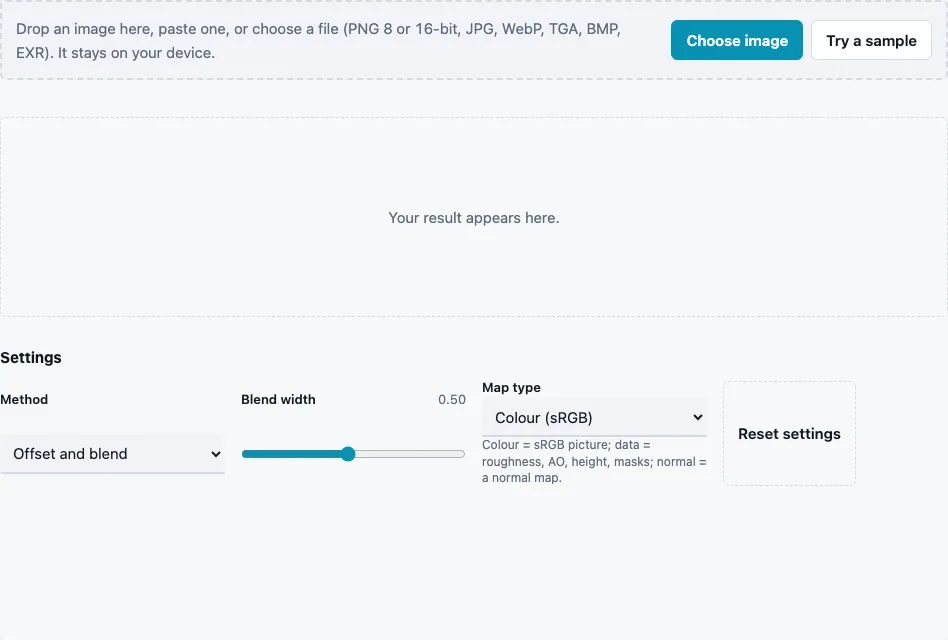
- Drop a photo or texture on the tool, paste it or press Choose image. Try a sample loads a crop of a brick wall whose edges do not match.
- Read Seam ratio before: about 1 means it already tiles, values above 3 mean a clear seam.
- Choose a Method: Offset and blend (default), Mirror (doubles the size), Crossfade (crops) or Edge ramp (removes the edge step).
- Set Blend width (0.05 to 1, default 0.5): the width of the transition, as a fraction of half the image. It is hidden for Mirror, which needs none.
- Compare Seam ratio after, tick Show 2 × 2 tiled in the result view, and look at the tiled plane in the 3D preview.
- Press Download Texture.
The size line in the stats shows what the method did to the dimensions: Offset and blend and Edge ramp keep them, Mirror doubles both, and Crossfade makes the image smaller by the blend width. If the tiled view still shows a seam, try a wider blend first, then another method. Work on the largest copy of the photo you have; a narrow blend on a large image keeps more of its detail untouched.
After downloading, run the texture through the Tileable Texture Tester at 4 × 4 if repetition matters: a seam can be gone while a distinctive spot still repeats.
Which method should I use to make a texture seamless?
Start with Offset and blend for most photos: it keeps the size and hides the seam by mixing in a shifted copy near the borders. Use Mirror for patterns where symmetry will not show, Crossfade when you can spare a strip of the image, and Edge ramp when a ghosted middle is unacceptable and the photo has no strong light gradient.
| Method | Size | How it works | Trade-off |
|---|---|---|---|
| Offset and blend | same | the image shifted by half is cross-faded in near the edges | soft, ghosted band where the copies mix |
| Mirror | doubled | the image plus its mirrored copies | always tiles, visibly symmetric |
| Crossfade | smaller | the start of the tile is faded in from the pixels after its end | loses a strip the width of the blend |
| Edge ramp | same | a linear ramp per row and column removes the brightness step | flattens a gradient across the image |
On the built-in brick crop, Offset and blend with default settings brings the seam ratio from 17.95 down to 0.35. Each method works one axis at a time, left to right first and then top to bottom, so the corners join as well as the sides.
What blend width should I use?
The default 0.5 suits most photos. A narrower blend keeps more of the original untouched but leaves a sharper transition; a wider one hides the seam better and spreads the ghosted area further toward the centre. If a strong feature sits near an edge, widen the blend so it fades out gradually.
Why do ordinary photos look like a checkerboard when tiled?
Light falls unevenly across almost any photo: one side is brighter, a corner is darker. Repeated, those gradients line up into a pattern of light and dark squares, even after the seam is gone. Edge ramp removes the step at the edges; for the gradient itself, even out the lighting first, for example with Remove baked shading from the colour map on the PBR Texture Generator, or shoot in flat light.
Questions and answers
How do I make an image seamless online?
Load it here, keep Offset and blend, check the 2 × 2 view and download. The whole process runs in the browser.
Can I make an image seamless without an image editor?
Yes. The offset-and-blend routine that is usually done by hand in an editor runs here in one step, with a measured result.
When should I use Mirror instead of Offset and blend?
For noise-like textures such as sand, gravel or foliage, where the symmetry does not show and you want no blending at all. Avoid it for anything with a direction, like bricks or text.
Why does the centre of my result look blurry or ghosted?
Offset and blend mixes two shifted copies near the edges, so detail can double there. Use a narrower blend, choose Edge ramp, or start from a photo with even detail.
What if my photo has perspective distortion?
Correct it first. Lines that converge toward one side cannot meet their copies at the edge, whatever the method.
How do I check if a texture is already seamless?
Look at Seam ratio before, or use the Tileable Texture Tester. Around 1 means it already tiles.
Does it work on normal maps or height maps?
Use it for colour photos and textures; it blends in linear light, as colour images need. For a height, roughness or other data map set Map type to Data, and for a normal map to Normal map: values are then blended as stored and normals rescaled to length 1. For a tiling normal map, make the colour texture seamless and build the normals from it on the Seamless Normal Map Generator, since blending normal-map colours shortens the vectors.
Related tools
- Tileable Texture Tester: measure any texture’s seam on its own.
- Seamless Texture Generator: patterns that tile by construction.
- Seamless Normal Map Generator: the tiled texture plus matching normals.
- PBR Texture Generator: a material set from the tiled photo.
- Image to Normal Map: normals from the result.
- Power of Two Texture Resizer: resize after Crossfade or Mirror.
- PBR Material Viewer: see the texture tiled on a 3D plane.