
Image to Normal Map
Turn a photo or texture into a normal map. Uneven lighting is taken out first, so a shadow on one side does not tilt the whole surface.
Free · runs in your browser · nothing is uploaded
Recent
Your last 10 settings, saved only in this browser. Nothing is uploaded.
How to use Image to Normal Map
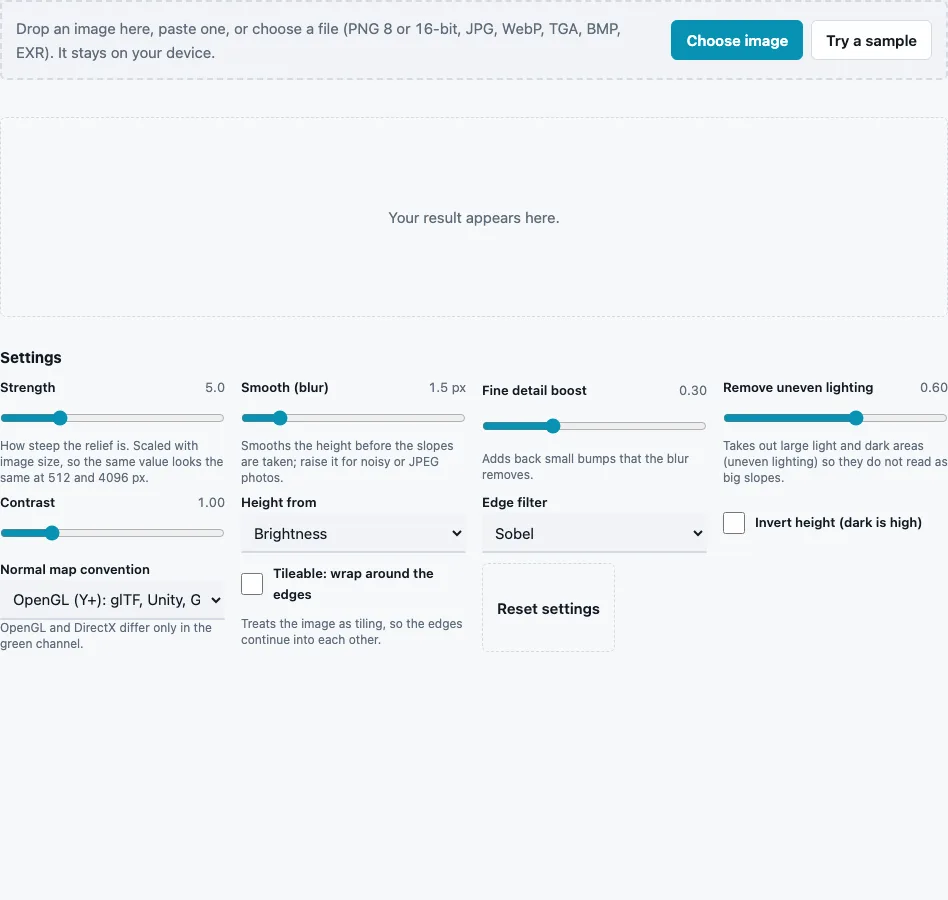
- Drop a photo or texture on the tool, paste it or press Choose image. Try a sample loads a brick wall.
- Look at the result first. Shadows, dark paint and light gradients show up as false dents and slopes.
- Leave Remove uneven lighting at its default 0.6 to take out broad light changes; 0 switches the clean-up off.
- Adjust Strength (0 to 20, default 5) for deeper or flatter relief.
- Raise Smooth (blur) (0 to 10 px, default 1.5) for grainy or JPEG photos, and Fine detail boost (default 0.3) to put small bumps back.
- Use Contrast (0.2 to 4, default 1) to stretch a flat-looking photo, and Height from to read one colour channel or Saturation instead of brightness.
- Choose an Edge filter and the Normal map convention: OpenGL (Y+) or DirectX (Y−).
- Tick Tileable: wrap around the edges if the texture repeats.
- Press Download Normal map, Download Height map or Download all (ZIP).
Drag the 3D preview to rotate it and hold Shift while dragging to move the light. Your settings stay in the page address, so a bookmark reopens them.
Work from the largest copy of the photo you have; the tool scales anything above 4096 px down for you (2048 px on phones). If the map looks noisy, raise the blur before you lower the strength, because noise in the height turns into sparkle in the normals.
Why do shadows in a photo make a bad normal map?
A photo records light, not depth. Because the tool reads brightness as height, a cast shadow or a patch of dark paint becomes a dent and a highlight becomes a bump. A normal map made from a photo therefore inherits the photo’s lighting, which is why flat, even light gives the cleanest result.
Three things help, in this order:
- Shoot or choose the texture straight on, in soft light: overcast daylight, no flash, no low sun.
- Keep Remove uneven lighting on. It removes broad brightness changes, measured with a very wide blur (sigma = long side ÷ 16), so a vignette or a gradient across the wall does not tilt the whole map.
- Use Invert height (dark is high) when the raised parts of your texture are the dark ones, such as dark pebbles in light mortar.
Hard shadows cannot be removed after the fact. If a stone casts a long shadow, that shadow will still read as a groove.
How do I turn an image into a normal map?
The tool converts the photo to height, smooths it, measures the slope at every pixel with the edge filter and stores each direction as colour: a component n from −1 to 1 becomes (n + 1) / 2, so flat areas are (128, 128, 255). On the brick sample (512 × 512, page defaults) the stats line shows a mean tilt of 13.9° and a maximum of 71°.
Strength is scaled with image size (s = strength × 16 × long side ÷ 1024), so a 1024 px and a 4096 px copy of the same photo come out with the same relief.
What is the difference between a normal map and a bump map?
A bump map stores height, one grey value per pixel, and the renderer works out the slopes while it draws. A normal map stores the slopes themselves as directions. The height map download here works as a bump map; the normal map is what most game engines expect.
Which settings change the result most?
Remove uneven lighting and Smooth (blur) shape the height before any slope is taken, so they matter more than the edge filter. Strength only scales the result; if the map looks wrong rather than weak, change the lighting clean-up or the blur first.
Questions and answers
Can AI generate normal maps?
Some services use AI models, but this page does not. Fixed maths turns brightness into slopes, so the same image and settings always give the same map.
What images work best?
Even, fine detail lit softly from the front: brick, plaster, bark, fabric, stone. Busy photos with objects at different distances give height that does not match their real shape.
Can I also make roughness and metallic maps from a photo?
Not on this page, which makes the normal and height maps only. The PBR Texture Generator makes albedo, AO, roughness, metallic and a packed ORM file from the same photo.
Which normal map convention should I pick?
OpenGL (Y+) for glTF, Unity and Godot, whose documentation asks for Y+ maps. The two styles differ only in green, so the Normal Map Converter can switch a finished map.
Why is the height map 16-bit?
16-bit PNG has 65,536 levels instead of 256, so the smoothed height keeps its gentle slopes. It cannot add detail the photo never had.
Do I need a special photo to start?
No, any photo works, but a texture photographed for the purpose gives far better relief than a snapshot: straight on, evenly lit, in focus from edge to edge.
Related tools
- Normal Map Generator: the general version, with a plain brightness-to-height default.
- PBR Texture Generator: a full material set from one photo.
- Height Map Generator: levels and gamma control over the height alone.
- Normal Map Converter: flip green for the other convention.
- Normal Map Viewer: check the map under a moving light.
- Make Texture Seamless: fix the photo’s edges before you make the map.
- Bump Map Generator: a grey bump map when your renderer wants height.