
Height Map Generator
Make a height map from an image, check it as displaced geometry in 3D, then save a 16-bit PNG.
Free · runs in your browser · nothing is uploaded
Recent
Your last 10 settings, saved only in this browser. Nothing is uploaded.
How to use the Height Map Generator
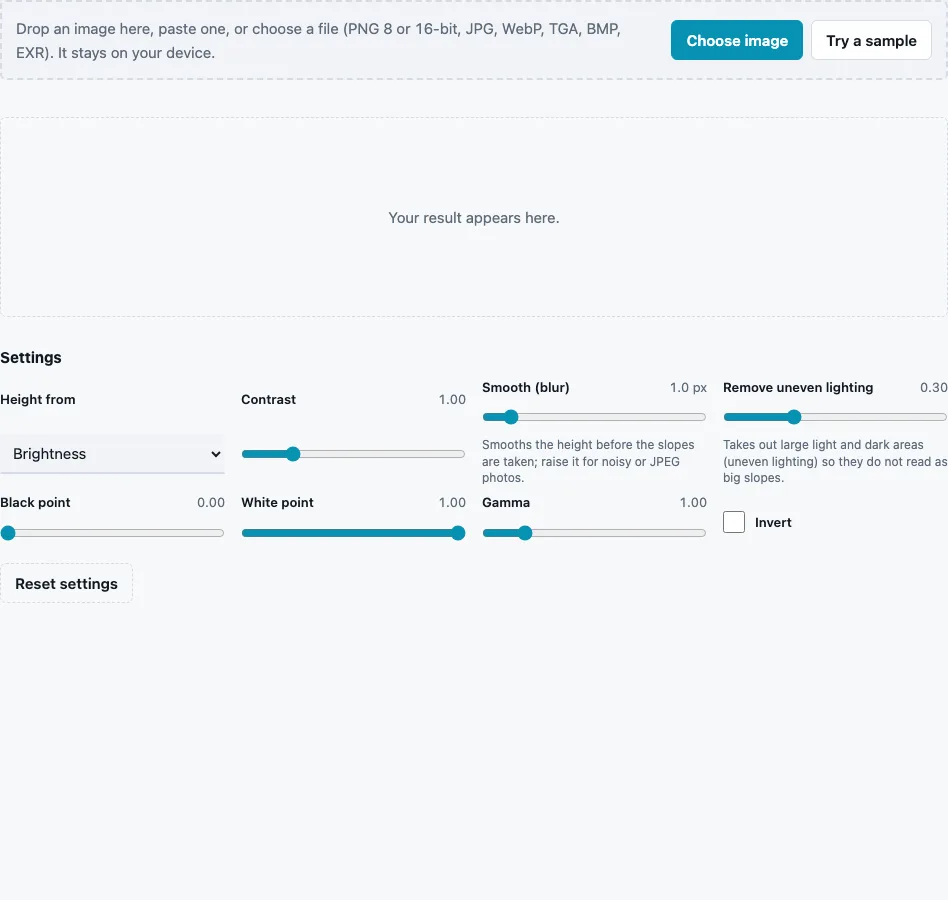
- Drop a photo or texture on the tool, paste it or press Choose image. Try a sample loads a brick wall.
- Choose Height from: Brightness (default), Red channel, Green channel, Blue channel or Saturation.
- Set Contrast (0.2 to 4, default 1) to spread the heights apart or pull them together around mid grey.
- Set Smooth (blur) (0 to 10 px, default 1) to remove grain that would become spikes.
- Set Remove uneven lighting (0 to 1, default 0.3) so a bright corner does not become a hill. When you drop a grey or 16-bit file that is already a height map, it and Smooth start at 0, so the heights pass through unchanged.
- Fine-tune with Black point and White point (0 to 1) to clip the darkest and lightest values, and Gamma (0.2 to 5, default 1) to lift or lower the middle heights.
- Tick Invert when dark areas should be high.
- Read min, max and mean in the stats line and check the displaced plane in the 3D preview, then press Download Height map.
The stats help with the levels: on the brick sample with defaults the height runs from 0.164 to 0.442, mean 0.336, so most of the range is unused. Setting Black point near 0.16 and White point near 0.44 stretches it over the full 0 to 1, which gives a renderer more height steps to work with. The File format menu keeps 16-bit PNG as the default for this map.
How do I make a height map from a picture?
Use a picture whose brightness follows its shape: raised parts lighter, low parts darker. The tool converts it to grey, smooths it, removes uneven lighting, applies contrast and levels, and saves 16 bits per pixel. A photo has no real depth, so the result is an estimate; it works well for bricks, stone, bark and fabric, poorly for scenes with objects at different distances.
The order of operations, so you know which control acts on what:
- Pick the source: brightness (Rec. 709 weights on the stored values), one channel, or saturation.
- Blur by the chosen number of pixels.
- Apply contrast around mid grey, then invert if ticked.
- Remove uneven lighting: subtract the broad brightness changes, measured with a very wide blur.
- Apply levels: values below the black point become 0, above the white point 1, and gamma bends the curve between (above 1 brightens the middle).
Why does 16-bit matter for height maps?
An 8-bit file has 256 grey levels, a 16-bit file 65,536. Displaced or parallax-mapped surfaces turn every level into a small step, so a smooth slope stored in 8-bit becomes a staircase. 16-bit keeps the in-between values that blurring and levels produce. It cannot add detail the source photo did not have.
Height map vs displacement map: which tool should I use?
Both make the same kind of grey image. Use this page when you want levels and gamma control over the height itself; use the Displacement Map Generator when your renderer needs a specific midpoint, with 50 % grey meaning no movement.
Which source channel should I pick?
Brightness suits most textures. A single channel helps when colour and shape disagree: in a photo of green moss on grey stone, the red channel may separate stone from moss better than brightness does. Saturation is useful for painted masks, where colourful areas should rise above grey ones. Try each and compare the stats; the channel with the widest min-to-max range usually carries the most usable height.
Gamma is the control people miss most. Above 1 it lifts the middle heights, making plateaus broader and valleys narrower; below 1 it does the opposite, which sharpens peaks.
Questions and answers
What is a height map?
A grey image where each pixel’s value is a height, black lowest and white highest. Renderers, terrain systems and normal-map generators read it as data.
Can I use this for Unity or Unreal terrain heightmaps?
You can use the 16-bit PNG as a starting point. Terrain tools often import headerless RAW files at sizes like 513 × 513; the RAW Heightmap to PNG Converter turns a PNG into RAW, and the Terrain Heightmap Generator makes landscapes at those sizes.
What is the difference between a height map and a bump map?
Mostly the use. Both are grey heights; a bump map only changes shading, while a height map often moves geometry or drives parallax and terrain.
Why does my height map look noisy in 3D?
Fine grain in the photo becomes tiny spikes. Raise Smooth (blur), or lower the displacement in the preview to judge the large shapes.
Can I make a height map from a normal map?
Yes, with the Normal Map to Height Map page, which integrates the slopes.
Can I make a height map of a real place?
Not here. This page reads an image you provide; it has no elevation data.
Should I invert the height map?
Only if the dark parts of your picture are the raised ones, for example dark stones set in light mortar. The 3D preview shows it at once.
Related tools
- Terrain Heightmap Generator: eroded landscapes at Unity, Unreal and power-of-two sizes.
- RAW Heightmap to PNG Converter: save the result as RAW for terrain tools.
- Displacement Map Generator: set a midpoint and scale.
- Height Map to Normal Map: normals at full 16-bit precision.
- Normal Map to Height Map: height from an existing normal map.
- Bump Map Generator: a grey bump map plus normals.
- Ambient Occlusion Map Generator: crevice shading from the height.