
Displacement Map Generator
Make a displacement map from an image and see it push real geometry in the 3D preview before you download a 16-bit PNG.
Free · runs in your browser · nothing is uploaded
Recent
Your last 10 settings, saved only in this browser. Nothing is uploaded.
How to use the Displacement Map Generator
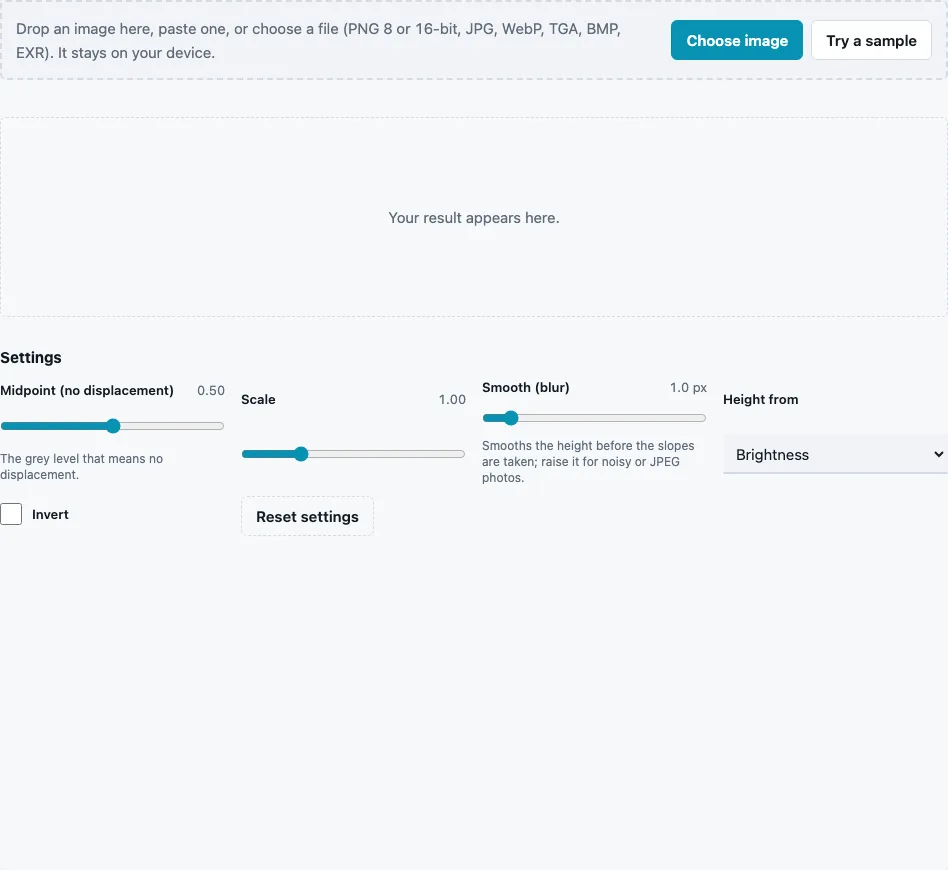
- Drop a photo, texture or grey height map on the tool, paste it or press Choose image. Try a sample loads a brick wall.
- Choose Height from: Brightness (default), Red channel, Green channel, Blue channel or Saturation.
- Set Midpoint (no displacement) (0 to 1, default 0.5) to the grey level that should stay where the surface is.
- Set Scale (0 to 4, default 1) to widen or narrow the range around that midpoint. Values that would go past black or white are clipped.
- Raise Smooth (blur) (0 to 10 px, default 1) to soften grain, which displacement exaggerates more than any other map.
- Tick Invert when dark parts of the image should stand out.
- Read the min, max and mean values in the stats line, then drag the Displacement slider in the 3D preview to see the plane deform.
- Press Download Displacement. The File format menu defaults to 16-bit PNG.
The 3D slider only changes the preview, not the file. Set the real depth in your renderer, where displacement strength or height scale decides how far white and black move the surface.
A practical order: set Invert and Height from until the parts that should stick out are the light ones, choose the midpoint by looking at the grey of the area that should stay flat, and only then adjust Scale. If the stats show a narrow range, for example everything between 0.3 and 0.45, a higher scale spreads it over more of the file and gives the renderer finer steps to work with.
What midpoint should a displacement map use?
Use the midpoint that matches how your renderer reads the map. Many renderers have a midlevel setting: with midlevel 0.5, 50 % grey stays put and the surface moves both out and in; with midlevel 0, black stays put and everything moves outward. Set the tool’s midpoint to the grey that should mean “flat”, and set the renderer’s midlevel to 0.5 for the file this tool writes.
The tool stores d = clamp((h − midpoint) × scale + 0.5). Values the engine computes:
| Input grey h | Midpoint | Scale | Stored value |
|---|---|---|---|
| 0.6 | 0.5 | 1 | 0.6 |
| 0.4 | 0.4 | 1 | 0.5 (no displacement) |
| 0.7 | 0.5 | 2 | 0.9 |
So if the mortar of a brick photo has a grey of 0.4 and you want the mortar to stay at the wall’s surface, set the midpoint to 0.4: the mortar is written as 0.5 and the bricks rise above it. On the built-in sample with default settings the stats read min 0.153, max 0.443 and mean 0.333.
What is a displacement map?
A displacement map is a grey image that tells a renderer how far to push each point of a surface along its normal. Unlike a normal or bump map, which only change how light falls, it changes the geometry, so edges and silhouettes show the relief. The mesh needs enough vertices for that, through subdivision or tessellation.
Why does my displacement look stepped?
8-bit files have only 256 levels, and displacement turns each level into a visible terrace on smooth slopes. The 16-bit default stores 65,536 levels. A small blur also helps with noisy photos.
How much detail can displacement show?
Only as much as the mesh has vertices. A 2048 px map on a plane with 100 × 100 vertices samples one value every 20 pixels or so, and everything in between is lost. That is why displacement is used for large shapes, such as bricks, stones and terrain, while a normal map carries the fine grain on the same material. Blurring the map slightly before displacing it avoids sharp spikes where single pixels stand out from their neighbours.
Height map or displacement map?
The same kind of grey image. “Height map” is the general term; “displacement map” means it moves geometry, together with a midpoint and a strength set in the renderer.
Questions and answers
Can I convert a height map into a displacement map?
Yes. Load the height map, keep Height from on Brightness, set the midpoint and scale, and download. A grey height map can also be used directly when the renderer’s midlevel matches it.
Does the 3D preview slider change the file?
No. It only shows the effect; the file always stores values from 0 to 1 around the midpoint.
What is the difference between a displacement map and a normal map?
A displacement map moves geometry and needs a dense mesh; a normal map only changes shading and works on any mesh. Many materials use both: displacement for the big shapes, normals for fine detail.
Which file format should I download?
16-bit PNG, the default. Use 8-bit only for previews or when a program cannot read 16-bit files.
Why is my displaced surface spiky?
The map is too noisy or the strength in your renderer too high. Raise Smooth (blur) and lower the renderer’s displacement scale.
Can I make a displacement map from a normal map?
Yes, with the Normal Map to Height Map page, which integrates the slopes; then set the midpoint here.
Does a displacement map need a normal map too?
It works alone, but lighting looks richer with both: displacement for the large shapes the mesh can carry, a normal map for detail finer than the mesh.
Related tools
- Height Map Generator: levels and gamma before you set a midpoint.
- Bump Map Generator: grey height for shading only.
- Normal Map to Height Map: height from an existing normal map.
- PBR Texture Generator: the rest of the material set.
- Terrain Heightmap Generator: eroded landscapes in 16-bit.
- PBR Material Viewer: see displacement with colour and normals.
- Normal Map Generator: fine detail to pair with displacement.