
Curvature Map Generator
Make a curvature map from a normal map (or a height map) to drive edge wear, dirt and highlight masks.
Free · runs in your browser · nothing is uploaded
Recent
Your last 10 settings, saved only in this browser. Nothing is uploaded.
A curvature map generator turns a normal map into a grey mask of where a surface bends: convex edges and ridges become lighter than mid grey, concave grooves and cracks darker, and flat areas stay exactly at mid grey. Texture artists use that mask to place edge wear, chipped paint, dust in crevices and highlights on rims. This page computes curvature directly from the normal map you already have, so no 3D model or baking program is needed, and it can start from a height map instead by turning it into normals first. A contrast control sets how much of the subtle bending shows, and wrap-around edges keep the mask tileable for repeating textures.
The output is a linear grey image with the size of your input.
How to use the Curvature Map Generator
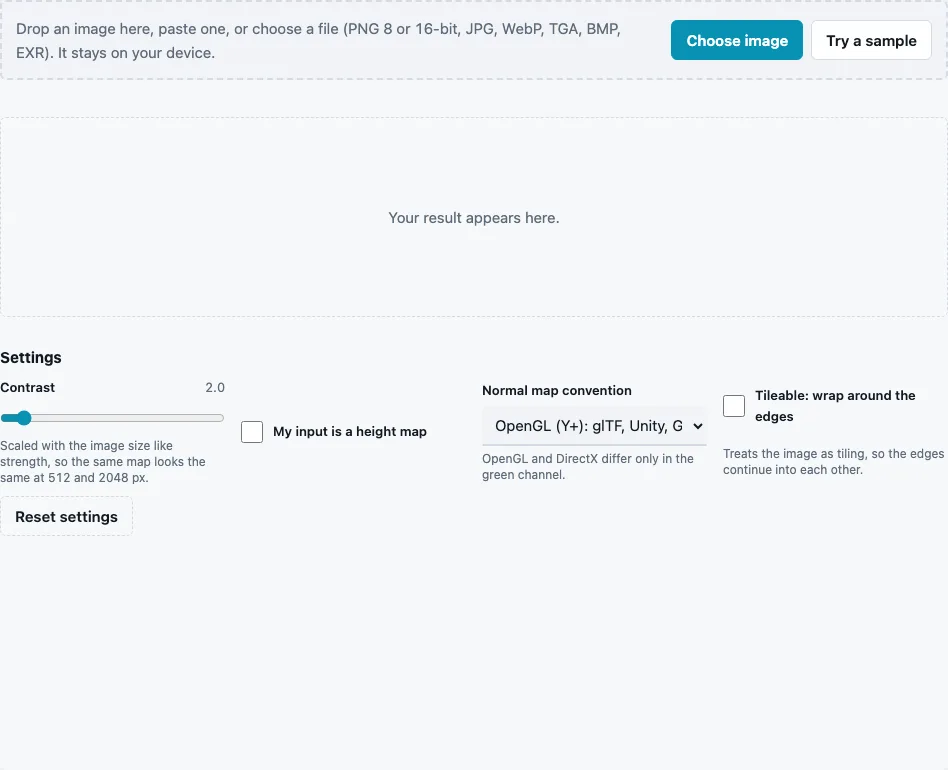
- Drop a normal map on the tool, paste it or press Choose image. Try a sample loads a brick normal map.
- Set Normal map convention to match the map, OpenGL (Y+) or DirectX (Y−). A wrong setting swaps light and dark along one axis.
- Set Contrast (0.5 to 20, default 2). It is scaled with the image size, so the same map looks alike at 512 and 2048 px. Low values keep only strong edges visible; high values bring out fine bends but clip sharp edges to pure white or black.
- If your input is a height map, tick My input is a height map. A Strength slider (0 to 20, default 4) appears for the normals made from it.
- Tick Tileable: wrap around the edges for repeating textures, so the mask continues across the borders.
- Read the min, max and mean in the stats line. A mean close to 0.5 is normal: most surfaces have as much convex as concave area.
- Check the 3D preview, where the curvature is shown as the surface colour, then press Download Curvature.
Use the downloaded map as a mask, not as a colour. In a material or painting program, blend a wear layer through the light parts and a dirt layer through the dark parts, adjusting the levels there to choose how far each spreads.
How is a curvature map made from a normal map?
Curvature is how quickly the surface direction changes from one pixel to the next. The tool measures, at each pixel, how much the normals spread apart (convex) or turn toward each other (concave), and writes that as a grey value around 0.5.
- The normal map is decoded to vectors; for a DirectX map the Y component is flipped first.
- The change of X across the image and of Y up the image are measured with central differences, and added: k = d(nx)/dx + d(ny)/dy, the divergence of the normal field.
- The output is 0.5 + 0.5 × Contrast × (long side ÷ 1024) × k, clipped to the 0..1 range.
| Value | Surface |
|---|---|
| 0.5 | flat, or bending equally both ways |
| above 0.5 | convex: edges, ridges, tops of bumps |
| below 0.5 | concave: grooves, cracks, joints |
On the built-in 512 px brick normal map with default settings the stats show a mean of 0.501. Measured separately, the mortar joints average 0.35, clearly concave, while the brick faces average 0.52, slightly convex: the mask already separates the two places where dirt and wear would go.
What is a curvature map used for?
Mostly as a mask. Paint wears first on convex edges, so the light parts of the map are where scratches and bare metal go. Dirt, dust and moisture gather in concave areas, so the dark parts carry grime. It also helps to sharpen the look of edges in stylised materials, by brightening the albedo where the curvature is high.
Why not use the AO map instead?
AO darkens areas that are hidden from the surrounding light, a broad effect that also catches open areas next to tall relief. Curvature reacts only to bending, so it is sharper and marks edges, which AO does not show at all. Many materials use both.
How much contrast should I use?
Enough that the features you want to mask reach near white or near black, and no more. Fine stone grain needs high contrast to register at all; a panel with sharp bevels needs a low one, or every edge clips to pure white and the mask loses its gradation. Check the min and max in the stats: if both sit at 0 and 1, part of the map is clipped.
Questions and answers
Can I make a curvature map from a height map?
Yes. Tick My input is a height map; it is turned into normals with the chosen strength first, then curvature is computed from those.
Why is my curvature map mostly grey?
The surface bends gently or the contrast is low. Raise Contrast until the edges you care about stand out.
Does the convention matter?
Yes. With the wrong one, curvature along the vertical axis is inverted, so horizontal edges read as grooves.
Why are some edges pure white?
High contrast clips strong bends at 1. Lower Contrast if you need gradation on sharp edges.
Is the result 8-bit or 16-bit?
8-bit PNG by default; the File format menu offers 16-bit if you plan heavy levels adjustments.
Does the map tile?
With Tileable: wrap around the edges on, yes; the differences at the borders use pixels from the opposite side.
What size and formats can I use?
Any normal or height map the tool reads, PNG in 8 or 16-bit, TGA, JPG, WebP, BMP or EXR, up to 4096 px on the long side (2048 px on phones). Avoid JPEG normal maps, since compression noise reads as tiny bends.
Can I invert the mask?
Not on this page. Invert it in your material or image editor if a program expects concave areas to be light.
Related tools
- Normal Map Generator: make the normals that curvature is computed from.
- Ambient Occlusion Map Generator: the broader, cavity-style mask.
- Height Map to Normal Map: precise normals from 16-bit heights.
- Metallic Map Generator: combine with curvature for worn metal edges.
- PBR Material Viewer: see the finished material lit in 3D.
- Normal Map Viewer: check the normals before computing curvature.
- Normal Map Converter: fix the convention first.