
Combine Normal Maps
Blend a detail normal map onto a base normal map and compare the five blend formulas on your own maps.
Free · runs in your browser · nothing is uploaded
Recent
Your last 10 settings, saved only in this browser. Nothing is uploaded.
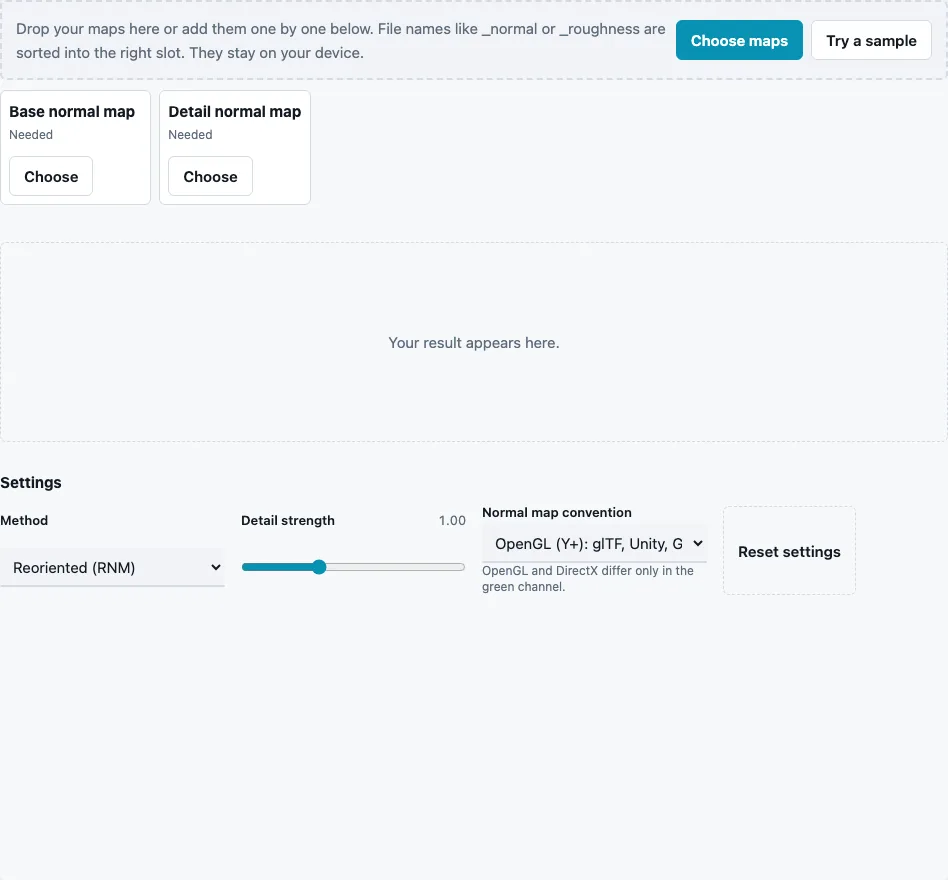
How to combine normal maps
- Drop both maps at once, or press Choose maps and fill Base normal map and Detail normal map. Try a sample loads a brick base and a fine noise detail.
- Set Normal map convention to the convention of both files. They must match; convert one first if they do not.
- Choose a Method: Reoriented (RNM) is the default.
- Set Detail strength (0 to 3, default 1). Values above 1 exaggerate the detail, 0 removes it.
- Check the stats line (mean and maximum tilt) and the 3D preview, ideally on the sphere so the detail wraps over curvature.
- Press Download Normal map.
A detail map smaller than the base is repeated across it, so a 256 px weave can cover a 2048 px base. The output has the size of the base map.
When you drop both files at once, they are placed by file name where possible and otherwise into the next empty slot, so check the two slot labels before you blend. Rotate the sphere slowly under a low light: a good blend shows the detail riding over the large shapes of the base without flattening them. If the detail disappears on the sides of the base, switch from UDN to Reoriented (RNM).
Which normal map blend method should I use?
Use Reoriented (RNM) when quality matters: it rotates the detail so it follows the slopes of the base, which keeps the detail correct on curved or steep parts. Whiteout is close to RNM and cheaper in a shader. UDN flattens the detail on steep base slopes. Linear and Overlay are simple but weaken the result.
The formulas follow “Blending in Detail” by Barré-Brisebois and Hill (2012); n1 is the base, n2 the detail, both as vectors from −1 to 1:
| Method | Formula | Notes |
|---|---|---|
| Reoriented (RNM) | t = n1 + (0, 0, 1), u = (−n2.x, −n2.y, n2.z), r = normalize(t·dot(t, u) − u·t.z) | default |
| Whiteout | normalize(n1.xy + n2.xy, n1.z × n2.z) | near RNM |
| UDN | normalize(n1.xy + n2.xy, n1.z) | detail fades on steep slopes |
| Linear | normalize(n1 + n2) | halves the base tilt with a flat detail |
| Overlay | overlay blend of the stored colours, then normalized | image-editor style |
A test with a flat detail map shows the difference: the base tilt of 0.9° stays 0.9° with RNM, UDN and Whiteout, and drops to 0.4° with Linear. Detail strength multiplies the detail’s X and Y before blending; at 0 the first three methods return the base unchanged.
Why not use an Overlay layer in an image editor?
Overlay mixes colour values, not directions. The blended pixels no longer have length 1, both maps lose strength, and the blue channel is pushed toward white. The Overlay method on this page does the same colour blend and then renormalizes, so you can compare; the vector methods keep the detail at full strength.
Why does the detail need to be reoriented?
A detail map is made for a flat surface. Laid on a slope of the base, it should tilt with that slope, the way scratches on a curved panel follow the curve. Adding X and Y alone, as UDN and Whiteout do, only approximates that tilt; RNM rotates the detail vector into the frame of the base normal, so the result comes much closer to a bake of both layers together.
Strength values above 1 help when the detail map was baked faint; at high values the small bumps can start to look like noise, so judge the setting on the 3D sphere.
Questions and answers
How do I merge two normal maps?
Load the base and the detail, make sure both use the same convention, keep RNM and download. Check the result on the 3D sphere.
Can I have two normal maps at the same time?
Yes. A shader can sample both and blend them with the same formulas at render time; baking them into one texture here saves a texture sample and memory.
Should both maps be DX or GL?
Both must be the same. The tool blends in OpenGL axes internally and writes the result back in the convention you chose.
What happens if the detail map has a different size?
It is tiled (repeated) over the base, so it should be a tileable texture. The output keeps the base map’s size.
Can I blend more than two maps?
Blend two, download, then load the result as the new base and add the next detail.
Does the order of the two maps matter?
For RNM and UDN, yes: the base provides the large shape and the detail is laid on top, so swapping them changes the result. Whiteout and Linear treat both maps the same way. Put the larger, lower-frequency map in the base slot either way.
Will the combined map tile?
It tiles if the base tiles. The detail is wrapped across the base, so a tileable detail adds no new seams, but a base with seams keeps them.
Related tools
- Normal Map Generator: make the detail map from a texture.
- Normal Map Converter: bring both maps to the same convention.
- Normal Map Checker: confirm the blend has unit-length vectors.
- Normal Map Viewer: light the combined map from any side.
- Seamless Normal Map Generator: a tiling detail map from a photo.
- PBR Material Viewer: see the blend inside a full material.
- Curvature Map Generator: edge masks from the finished map.