
Texture Channel Splitter
Unpack a channel-packed texture into separate grey maps, one per channel.
Free · runs in your browser · nothing is uploaded
Recent
Your last 10 settings, saved only in this browser. Nothing is uploaded.
A channel splitter takes one image apart into its colour channels and saves each as a separate grey image, so you can see and use what the red, green, blue and alpha channels hold on their own. For game textures this is how you unpack a channel-packed file: an ORM texture, a Unity HDRP mask map, a metallic-smoothness map or a texture whose alpha carries a mask. The values are copied exactly, with no colour conversion, and the stats line lists the minimum, maximum and mean of every channel, which often tells you what a channel contains before you even open it. You can save the channels as plain grey images or tinted in their own colour.
It reads PNG in 8 or 16-bit, TGA, JPG, WebP, BMP and EXR.
How to use the Texture Channel Splitter
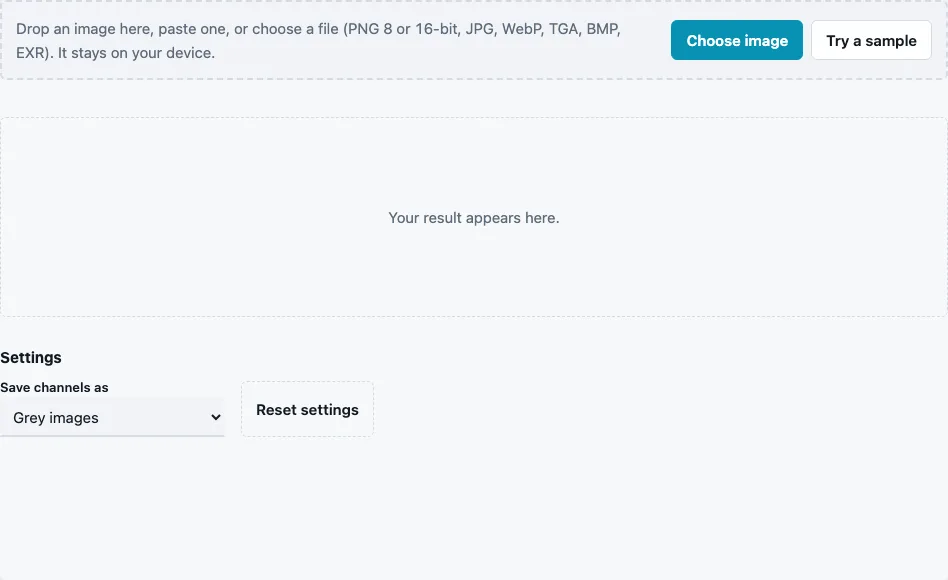
- Drop an image on the tool, paste it or press Choose image. Try a sample loads a packed ORM texture made from a brick wall.
- Choose Save channels as: Grey images (default) or Tinted (R red, G green, B blue). Tinting is only for viewing; the grey version is what engines and editors expect.
- Read the stats line: Channels and, for each channel, its minimum–maximum and mean.
- Switch between the channel views in the result area to look at each one.
- Press Download Red channel, Download Green channel, Download Blue channel and Download Alpha channel (when there is one), or Download all (ZIP).
A grey image gives one Grey channel. A 16-bit PNG keeps its precision: choose PNG 16-bit in the File format menu so the split channels keep it too. The default format saves the channels as 8-bit PNG, which is enough for most packed textures. To combine the channels again in another order, load them into the ORM Texture Packer.
The 3D preview reads the first three channels as AO, roughness and metallic, the ORM order, so a correctly packed ORM file looks right on the sphere straight away. If it looks wrong there, the file probably uses another layout; the stats and the table below help to work out which. File names often hint at the layout too, for example _ORM, _ARM or _MaskMap.
How do I unpack an ORM texture?
Split it and read the channels in the ORM order: red is ambient occlusion, green is roughness and blue is metallic. That is the order glTF 2.0 uses, and ORM and ARM files normally follow it. Other packed layouts use the same channels for different maps, so check where the file came from.
| Layout | R | G | B | A |
|---|---|---|---|---|
| ORM / ARM | AO | roughness | metallic | – |
| Unity HDRP mask map | metallic | AO | detail mask | smoothness |
| MRAO | metallic | roughness | AO | – |
The stats help to tell layouts apart. On the built-in ORM sample, red runs from 0.737 to 1 with a mean of 0.968, typical of AO, which is mostly white; green runs from 0.553 to 0.851 (mean 0.667), a plausible roughness range; and blue is 0 everywhere, meaning no metal. A channel that is entirely 0 or 1 is usually a constant fill, such as metallic in a non-metal material.
How do I split an image into RGB channels?
Load it and download the channels. Each output is a grey image whose pixel values equal that channel’s values in the original: a pixel with red 200 becomes grey 200 in the red-channel file. Nothing is gamma-corrected or colour-managed, so a data channel stays data.
Why split a texture at all?
To check what a downloaded material really packs before you wire it into a shader; to edit one channel, for example to brighten the AO, without touching the others; to repack a texture for another engine; or to pull a mask out of an alpha channel.
What do typical channels look like?
AO is mostly white with dark crevices, so its mean sits close to 1. Roughness spreads over the middle of the range. Metallic is usually pure black, pure white or a hard mix of the two. A smoothness channel looks like an inverted roughness map: shiny areas light. Height and detail masks vary, so check the material’s documentation when a channel fits none of these patterns.
Questions and answers
Are the channel values changed?
No. Every channel is copied with its exact stored values; no sRGB or colour conversion is applied.
What do the numbers in the stats mean?
The lowest and highest value in each channel and its average, on a 0 to 1 scale. They show at a glance whether a channel is constant, mostly white like AO, or spread out like roughness.
Can I repack the channels in another order?
Yes. Load the grey channels into the ORM Texture Packer and choose another layout, for example from ORM to the Unity HDRP mask.
What happens to the alpha channel?
It is saved as its own grey image when the file has one. Without alpha, only red, green and blue are saved.
Why do EXR values look clipped?
Values above 1 in an EXR file are clipped to 1 when it is loaded, so very bright HDR pixels all become white.
Does it work on normal maps?
Yes. Splitting a normal map shows X in red, Y in green and Z in blue; it is a quick way to see whether the green channel is the one you expect.
Is there a size limit?
Images up to 4096 px on the long side are split at full size (2048 px on phones and low-memory devices); larger ones are scaled down first, and the tool tells you when that happens.
Related tools
- ORM Texture Packer: pack the channels again in any layout.
- PBR Material Viewer: view a packed ORM directly on a lit sphere.
- Normal Map Converter: flip a normal map’s green channel.
- Roughness Map Generator: invert a smoothness channel into roughness.
- Texture Packer: a different kind of packing, sprites on one sheet.
- Mipmap Generator: see how a channel holds up at smaller sizes.