
Bump Map Generator
Make a grey bump map from a photo or texture, and get the matching normal map from the same settings.
Free · runs in your browser · nothing is uploaded
Recent
Your last 10 settings, saved only in this browser. Nothing is uploaded.
How to use the Bump Map Generator
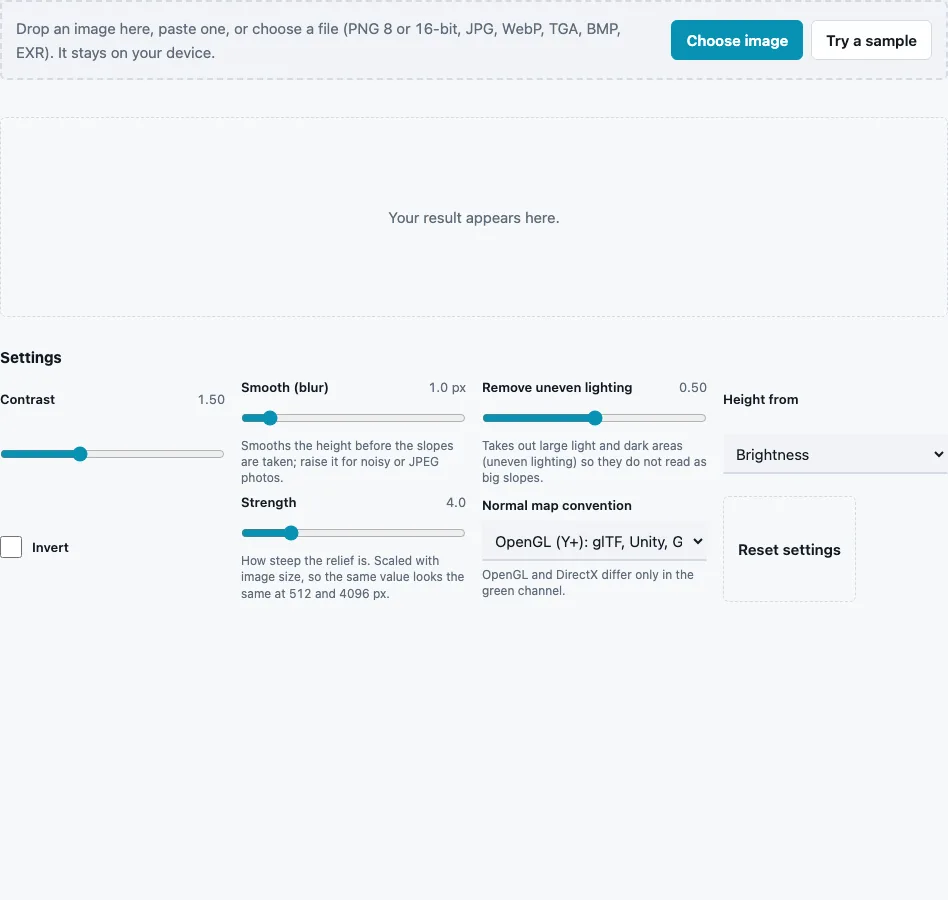
- Drop a photo or texture on the tool, paste it or press Choose image. Try a sample loads a brick wall.
- Set Contrast (0.2 to 4, default 1.5) to spread the grey values further apart around mid grey.
- Set Smooth (blur) (0 to 10 px, default 1) to calm grain and JPEG noise.
- Keep Remove uneven lighting (0 to 1, default 0.5) on so a light gradient does not become a slope across the whole map.
- Choose Height from: Brightness, Red channel, Green channel, Blue channel or Saturation.
- Tick Invert when the raised parts of the texture are the dark ones.
- Strength (default 4) and Normal map convention affect only the extra normal map.
- Check the 3D preview, then press Download Bump map, Download Normal map or Download all (ZIP).
The File format menu defaults to 16-bit PNG for the bump map and 8-bit PNG for the normal map; you can force either depth or choose 8-bit TGA.
The two downloads have different jobs. The grey Bump map goes into a material’s bump or height input, where the renderer turns it into shading; the Normal map goes into a normal input and needs no extra work at render time. Rotate the 3D preview with a low light to judge the depth, and switch Show to Height only to look at the grey map itself.
What is a bump map?
A bump map is a grey image where light means high and dark means low. The renderer reads how quickly the grey changes from pixel to pixel and tilts the shading accordingly, so a flat surface looks rough or engraved. The geometry and the silhouette stay unchanged, which keeps it cheap.
The tool builds it in this order: pick the source channel, blur, apply contrast around mid grey, invert if asked, then remove uneven lighting. On the brick sample (512 px, defaults) the matching normal map has a mean tilt of 15.9°.
Bump map, normal map or displacement map?
All three describe surface relief, but they store it differently and cost different amounts at render time:
| Map | Stores | Changes the silhouette | Typical use |
|---|---|---|---|
| Bump map | height, 1 grey value per pixel | no | shader bump inputs, older pipelines |
| Normal map | direction, 3 values (R, G, B) | no | game engines, real-time assets |
| Displacement map | height used to move vertices | yes | close-up renders with dense or tessellated meshes |
A bump and a displacement map can be the same grey picture; the difference is what the renderer does with it. A normal map can be computed from a bump map at any time, which is exactly what the second download is.
Does a 16-bit bump map add detail?
No. 8-bit PNG holds 256 grey levels and 16-bit holds 65,536, so after smoothing and contrast the 16-bit file keeps gentle slopes without terraces. Detail that the 8-bit source photo never captured cannot appear.
How strong should a bump map be?
The file only stores relative height from black to white; the depth you see is set by the bump strength or distance in your renderer. Use Contrast to decide which details stand out, not how deep they are. If the whole map looks muddy, raise the contrast; if fine grain swamps the shapes you want, raise Smooth (blur) a little.
The 16-bit default matters here: smoothing and contrast create in-between grey values that an 8-bit file would round to 256 levels, while 16-bit keeps them, so smooth gradients stay free of banding.
Questions and answers
How do I create a bump map from an image?
Load the image, keep Remove uneven lighting on, tune Contrast until bumps stand out from the background, and download the bump map. Invert it if dark areas should be raised.
Are bump maps still used?
Yes. Many renderers and shader graphs take a grey height input for bump mapping. Game engines usually prefer a normal map, so this page gives you both.
Where can I use bump maps?
Anywhere a material has a bump or height input: product and architectural renders, stylised shaders, or as the source for a normal map, AO map or displacement.
What is the difference between bump and height maps?
Mostly the job, not the file. Both are grey height images; “bump” usually means it only changes shading, while “height” often means it drives parallax, terrain or displacement.
What is a normal map, and how is it different from a bump map?
A normal map stores the slope direction per pixel in RGB, so the renderer needs no extra work to light it. A bump map stores height and leaves the slope maths to the renderer.
Can I turn the bump map into a displacement map?
Yes. Load it on the Displacement Map Generator and set a midpoint and scale, or use it directly if your renderer treats mid grey as zero.
Related tools
- Normal Map Generator: normals with four edge filters and size-scaled strength.
- Height Map Generator: levels, gamma and black and white points for height.
- Displacement Map Generator: set a midpoint and scale for moving geometry.
- Image to Normal Map: photo-tuned normals with a detail boost.
- PBR Texture Generator: AO, roughness and ORM along with the normals.
- Roughness Map Generator: the matte and gloss part of the material.
- Normal Map Viewer: light the normal map under a moving lamp.