
Ambient Occlusion Map Generator
Make an AO map from a height map or texture: crevices and grooves get darker, open surfaces stay white.
Free · runs in your browser · nothing is uploaded
Recent
Your last 10 settings, saved only in this browser. Nothing is uploaded.
How to use the Ambient Occlusion Map Generator
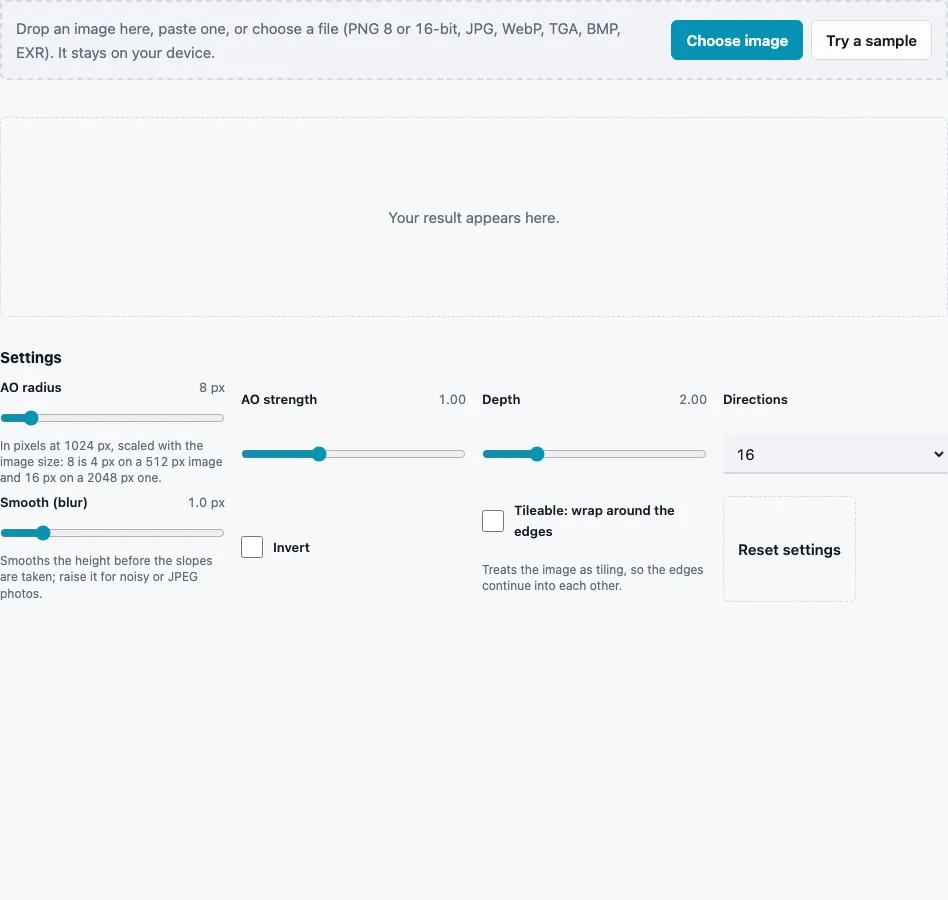
- Drop a height map or a photo on the tool, paste it or press Choose image. Try a sample loads a brick wall. Dark is read as low, light as high.
- Set AO radius (1 to 64 px, default 8). It is measured in pixels of a 1024 px image and scaled with the size, so 8 means 16 px on a 2048 px map and 4 px on a 512 px one.
- Set AO strength (0 to 3, default 1) for how dark occluded areas get.
- Set Depth (0.25 to 8, default 2): how tall the full black-to-white range counts, relative to the radius. Higher values make the same relief occlude more.
- Choose Directions: 8 (fast), 16 (default) or 32 (smooth). More directions smooth out star-shaped streaks that few directions can leave around small features.
- Raise Smooth (blur) (0 to 6 px, default 1) for noisy photos, and tick Invert if dark means high in your image.
- Tick Tileable: wrap around the edges for repeating textures.
- Check the min, max and mean in the stats line and the AO view in the 3D preview, then press Download AO map.
On the built-in 512 px brick sample with default settings the stats show a minimum of 0.749 and a mean of 0.972: the mortar joints darken while the brick faces stay almost white. Images above 2048 px are scaled to 2048 px, and the occlusion itself is computed at up to 1024 px and scaled back up, since AO changes slowly across a surface.
How is ambient occlusion computed from a height map?
For every pixel the tool walks outward along a set of evenly spaced directions, one pixel at a time up to the radius, and records the steepest rise of the terrain it meets. That rise is the horizon in that direction. The higher the horizons around a point, the less sky it sees, and the darker its AO value.
- Height is turned into pixel units: the full black-to-white range is Depth × radius pixels tall.
- In each direction the steepest rise t is found (falling or flat ground counts as open sky).
- The horizon angle is turned into an occlusion share, sin(angle) = t ÷ √(1 + t²).
- AO = 1 − strength × the average share over all directions, kept between 0 and 1.
A flat surface stays at 1, completely white. The engine’s own test uses a V-groove with 45° sides: the pixel at the bottom of the groove, sampled in 16 directions, comes out at 0.50828, which matches the value worked out by hand from the formula.
Is this a real ray-traced AO bake?
No. A bake from a 3D model traces rays against the real geometry, overhangs included. This tool only sees the height map, a surface with one height per pixel, so it cannot know about undercuts or the far side of objects. It is also darker than a ray-traced bake: at the bottom of a 45° groove it gives 0.51, where a cosine-weighted bake gives about 0.71, so lower AO strength to about 0.6 to get closer to a baked look. For complex models, bake from the mesh.
What is an ambient occlusion map?
An ambient occlusion map stores, per pixel, how exposed the surface is to light arriving from all around: 1 is fully open, 0 fully blocked. Materials multiply their ambient or indirect light by it, which darkens crevices even where no direct shadow falls. In glTF it is read from the red channel of the occlusion texture.
How do Depth and radius work together?
The radius sets how far the search looks; Depth sets how tall the relief is compared with that distance. With Depth 2 and radius 8, a pixel that is pure white stands 16 px above a pure black one. Doubling the radius without changing Depth also doubles that height, so the shading keeps its character and simply reaches further.
Questions and answers
What radius should I use?
Small values (2 to 6) for fine cracks and grain, larger values (16 to 32) for deep joints between bricks or tiles. Too large a radius darkens whole areas instead of the gaps.
Where do I plug the AO map in?
Into the material’s ambient occlusion or occlusion input, as linear data with sRGB off, or into the red channel of an ORM texture with the ORM Texture Packer.
Can I make an AO map from a photo?
Yes. The photo’s brightness is used as height, so evenly lit photos work best; dark stains will read as hollows and get darker still.
Why is my AO map too dark?
The radius, depth or strength is too high for the relief. Lower Depth first, then AO strength.
Why do I see star-shaped patterns?
Usually there are too few directions for the radius. Switch Directions to 32, or add a little blur.
Does the map tile?
Only with Tileable: wrap around the edges on; then the horizon search continues across the borders and the edges match.
Should the AO map be multiplied into the colour map?
Not in a PBR material, where the occlusion input already handles it. Some stylised or mobile pipelines multiply AO into the albedo to save a texture; do that in the engine or an image editor, not here.
Can I use 32 directions on a phone?
Yes, but expect it to take longer. On phones and low-memory devices this tool works at up to 1024 px.
Related tools
- Height Map Generator: clean height from a photo before computing AO.
- ORM Texture Packer: put the AO into the red channel with roughness and metallic.
- Curvature Map Generator: edge and groove masks to combine with AO.
- PBR Texture Generator: AO together with the rest of the material.
- Roughness Map Generator: the next map in the same set.
- PBR Material Viewer: check the AO inside the full material.
- Normal Map Generator: normals from the same height.